
How to Change or Reset Zoom Password

To create a unique password, simply create a Zoom account. If you already have an account but would like to change your password, there are two ways to do so, depending on whether you're using a Mac or PC.
Change Zoom Password
It's important to keep in mind that if you have signed into your Zoom account using Google or Facebook, you will not be able to change your password through the Zoom platform. To change your password in such cases, you'll need to modify your password on the respective Google or Facebook account.
However, if you have a regular Zoom account, you can change your password as follows:
1. Open the Zoom website using a browser on your Mac or PC and sign in to your account.
2. From the top right corner of the page, click "My account" to access your account information.
3. On the left navigation panel, click "Profile."
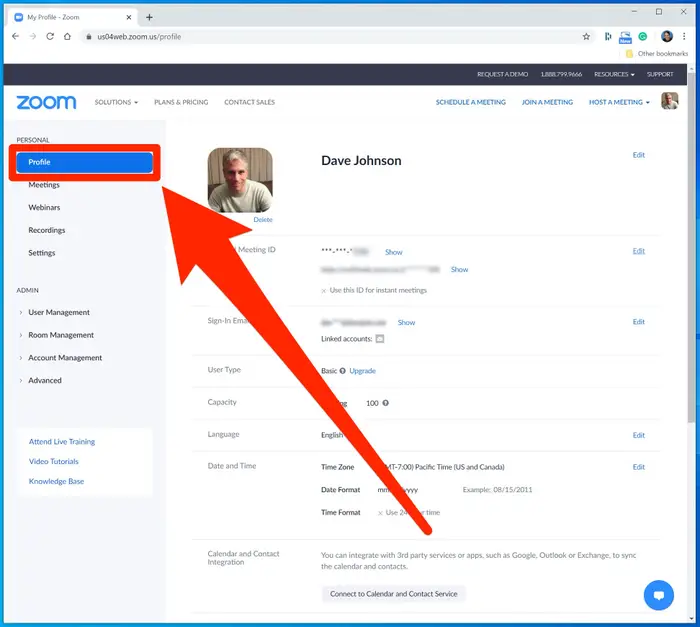
4. Scroll down to the "Sign-In Password" section and click "Edit" on the right.
5. To confirm that you have permission to make changes, enter your current password. Then, enter your desired new password and click "Save Changes."
Resetting Your Forgotten Zoom Password
If you have forgotten your password, resetting it is a simple process:
1. Visit the Zoom website and click "Sign In" located in the top right corner.
2. On the sign-in page, click the "Forgot password?" link located within the password field.
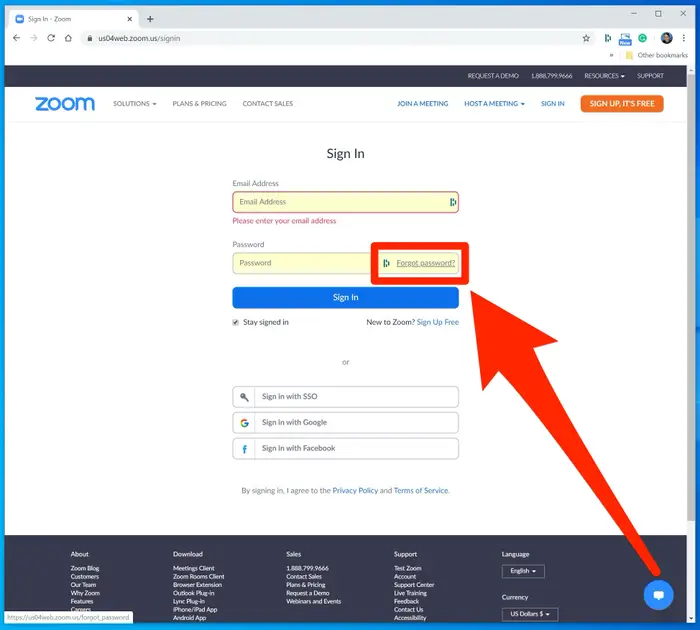
3. Enter your registered email address and click "Send." You may also be required to complete a captcha to verify that you're not a robot.
4. Upon receipt of the password reset email, follow the instructions provided to change your password.
After updating your password, check out to the Beginner's Guide to Zoom for additional useful tips.
