
How to Change or Reset Yahoo Mail Password

To help you change your password, here is a guide. It's important to note that if your Yahoo account doesn't have an alternate email address or a phone number associated with it, there's a high likelihood that it can't be recovered. In such a case, you will need to create a new account.
Change Yahoo Password on Desktop
2. Click on "Change Password"
3. Input a New Password
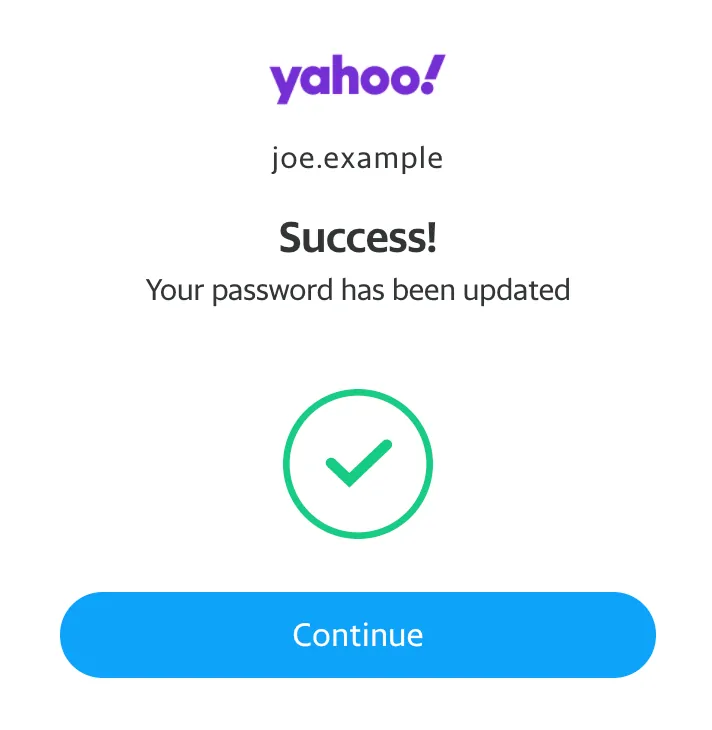
4. Confirm by clicking "Continue"
Change Yahoo Password on Mobile
The process of updating a Yahoo password on a mobile device is simple and consistent regardless of whether you have an Android or iOS device. The steps to change your Yahoo password are the same for both types of devices.
2. Choose "Manage Accounts"
3. Go to "Account Info"
4. Select "Security Settings"
5. Enter your Security Code
6. Choose "Change Password"
7. Tap "I would rather change my password"
8. Input and Confirm the New Password
9. Tap "Continue"
Reset Forgotten Yahoo Password
1. Go to the login page and enter your username. Then, click on the "Forgot Password" link.
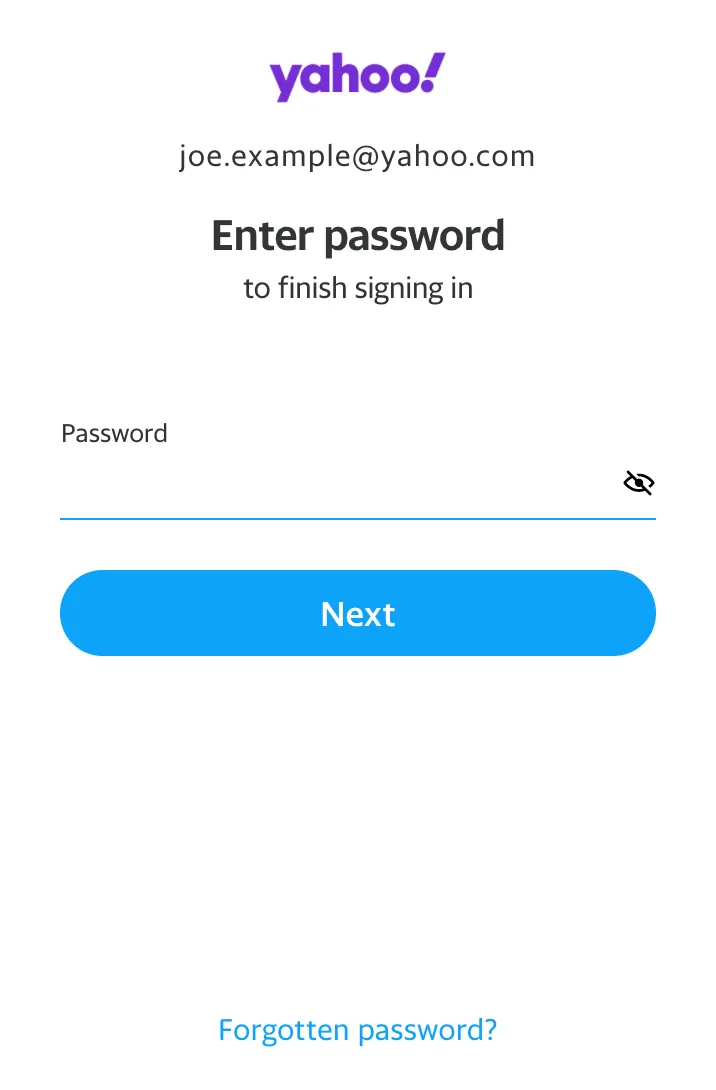
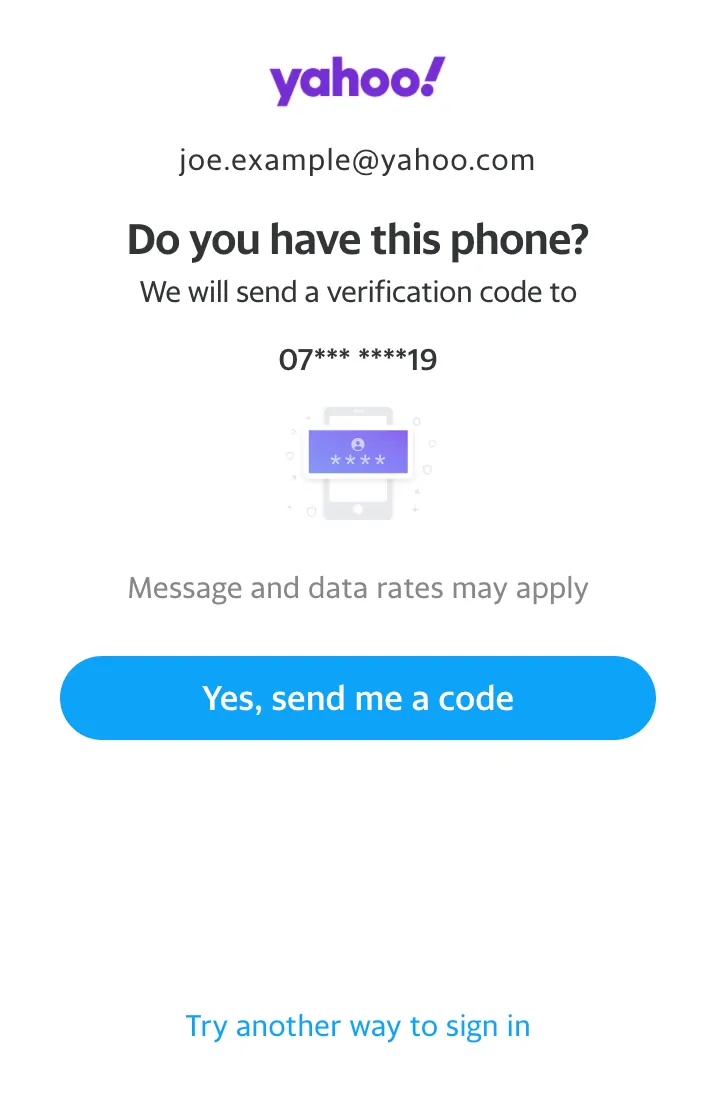
2. If you have updated your security settings with your phone number, you will be prompted to receive a code to that number. Select "Send Code."
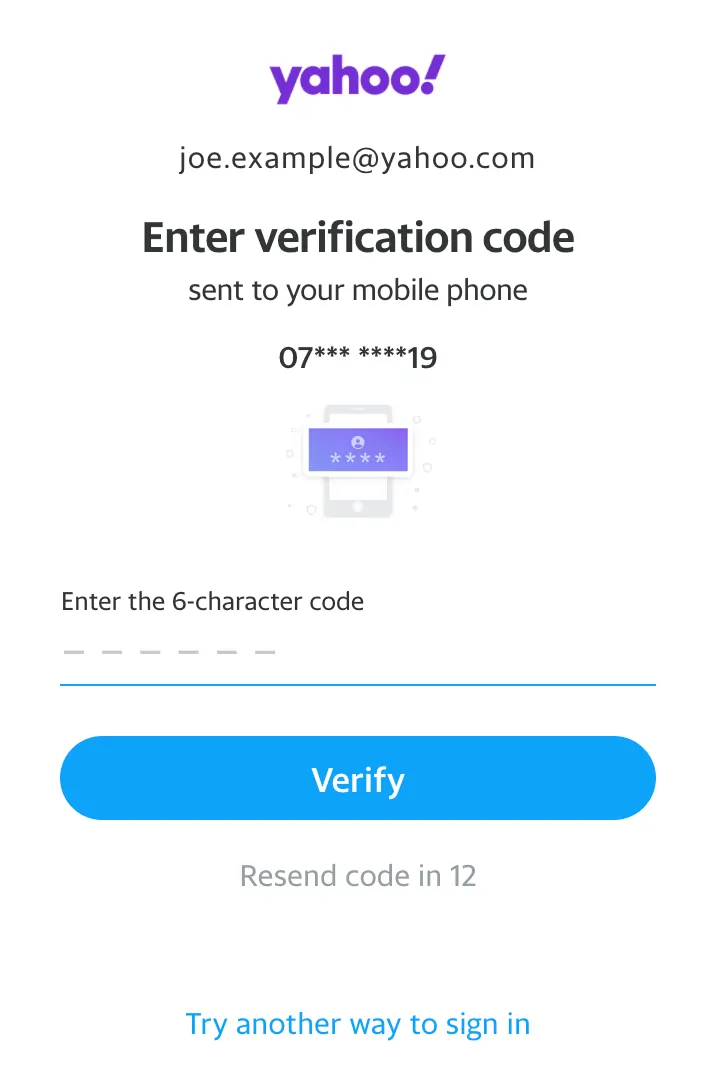
3. You will receive a 6-digit code, which you should enter as soon as possible.
4. After entering the code, you will be prompted to create a new password. Make sure to choose a unique password different from your previous ones.
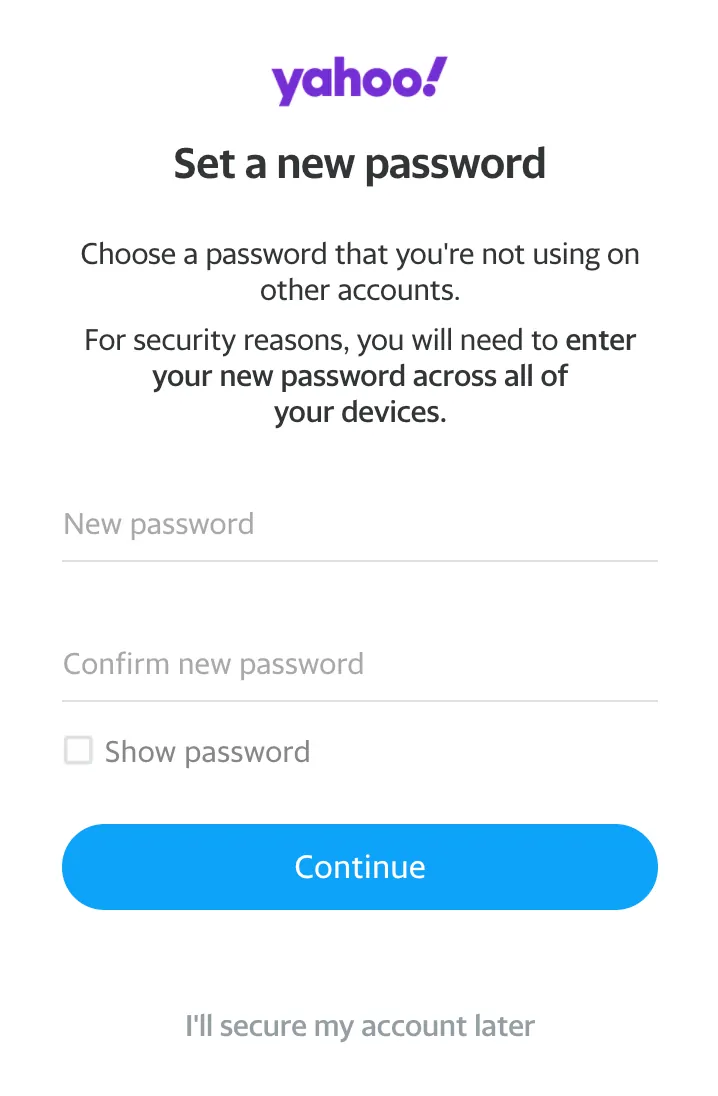
5. With these simple steps, you've successfully reset your Yahoo password!
To enhance security, familiarize yourself with the other security features available to you. Yahoo mail offers a two-step verification option during login. This adds an additional layer of security by requiring a code, which will be sent to your phone, to be entered each time you want to log in.
