
How to Change or Reset Social Security Password

We acknowledge the inconvenience you may face when forgetting your login credentials or security questions. However, don't worry! We have some helpful suggestions to help you regain access to our online services.
Forgot Username:
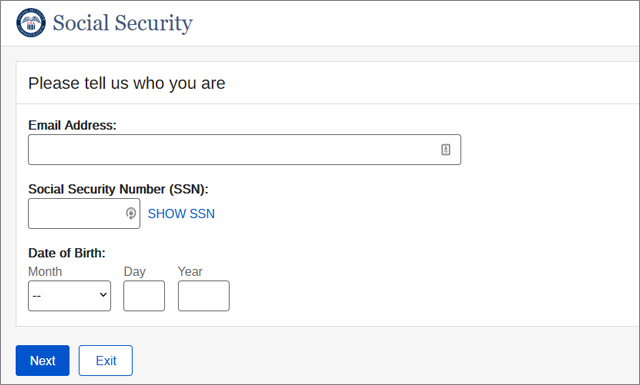
To retrieve your forgotten username, go to the Sign in page and click on the "Forgot Username?" option located below the Username field. You'll be prompted to enter your email, Social Security number, and date of birth. Once you've done that, press "Next" and your username will be displayed and automatically filled in for you.
Forgot Password:
During the registration process for your personal my Social Security account, you specified either an email address or a cell phone number as your secondary authentication factor. Whenever you sign into your account, we will send you a one-time security code to either the email or cell phone number that you provided. To reset your account password, you will need to have access to the specified secondary authentication factor.
If you've lost access to your personal my Social Security account due to forgetting your password, you can easily regain it. Go to the Sign In page and click on the "Forgot Password?" option. Enter your username, Social Security number, and date of birth to proceed.
Then, you'll be asked to answer your Password Reset Questions. If you remember the answers, type them in the corresponding text boxes and provide either your cell phone number or email address to receive a one-time security code. After entering the code and clicking "Submit Security Code," you'll be able to update your password by following the on-screen instructions. Finally, you'll be asked to accept the Terms of Service, after which you'll be logged into your account.
Forgot Password Reset Answers:
If you have forgotten the answers to your password reset questions, select the option "I can't remember my answers" and proceed as instructed.
Instructions for Using Email as Your Second Authentication Factor
- Scroll down and check the "I agree to the Terms of Service" box.
- Click "Next."
- On the "Provide Information" page, enter your mailing address and primary phone number.
- Click "Mail Temporary Password."
- Click "Done" on the next page.
You will receive a letter containing a temporary password and instructions for creating a new password within 5 to 10 business days.
- Go to the Sign In page and enter your username and temporary password.
- Click "Sign In."
- Verify your email address on the next page.
- Click "Next."
- Enter the security code received via email on the following page.
- Click "Submit Security Code."
- Create a new password on the next page.
- Click "Next" and then "Next" again.
- Scroll down and check the "I agree to the Terms of Service" box.
- Click "Next" to access your personal my Social Security account.
Instructions for Using Cell Phone as Your Second Authentication Factor
- Click "Email Temporary Password."
- Check your email for the temporary password.
- Go to the Sign In page.
- Enter your username and temporary password.
- Verify your cell phone number and click "Next."
- Enter the security code received on your cell phone.
- Click "Submit Security Code."
- Create a new password on the next page by clicking "Next" and then "Next" again.
- Scroll down and check the "I agree to the Terms of Service" box.
- Click "Next" to access your my Social Security account.
Once you have changed your password, see the Beginner's Guide to Social Security for more helpful tips.
