
How to Change or Reset PowerSchool Password
Students: Contact Your School for Assistance
Parents: Reset Your Password Through the Website (if enabled by the district)
If you encounter any challenges with the password reset process, please seek assistance from your school or district.
Parents: How to Reset Password from your School’s Web Portal
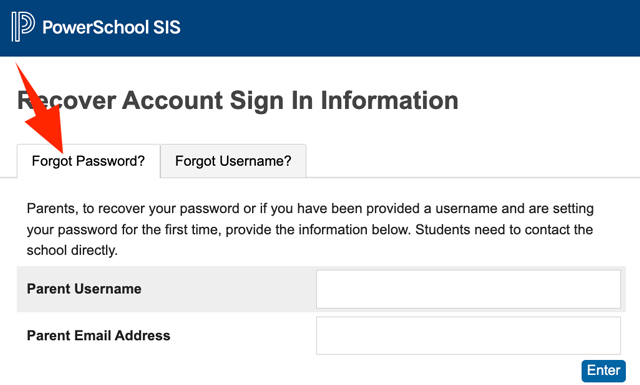
1. Click on the "Forgot Username or Password" link.
2. Input the username and email associated with your account and click "Enter."
3. Check your email inbox for a message from your school. If the email is not present, check your Junk or Spam folder.
4. Follow the password reset link in the email received.
5. Create a new password.
6. Log into the website to confirm the password has been reset successfully.
7. Log in to the app to complete the process.
Once you've changed your password, see the Beginner's Guide to PowerSchool for more helpful tips.
