
How to Change or Reset PayPal Password

To keep your PayPal account secure, it's important to use a strong password, just like with all your other financial accounts and services. A strong password should be at least 8 characters long and include a combination of upper and lowercase letters, numbers, and symbols for maximum protection. To change your password and enhance security, follow these steps:
Change PayPal Password
1. Navigate to PayPal.com using a web browser. Note that password changes cannot be made through the mobile app, only on the website.
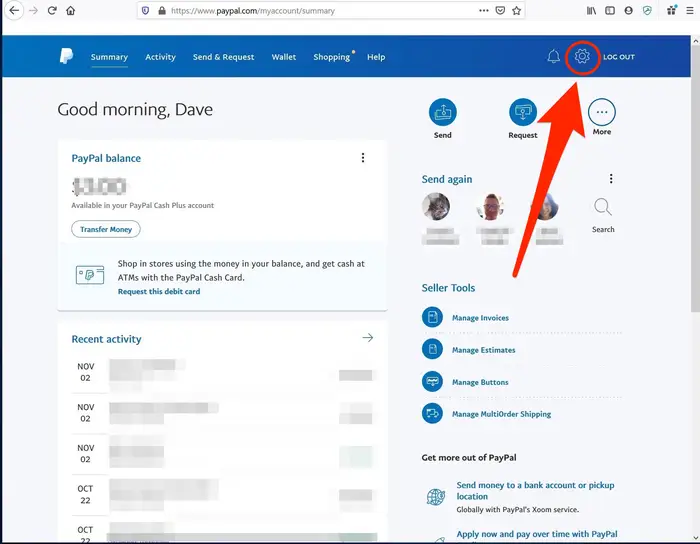
2. Select the Settings icon, located in the top right corner of the screen.
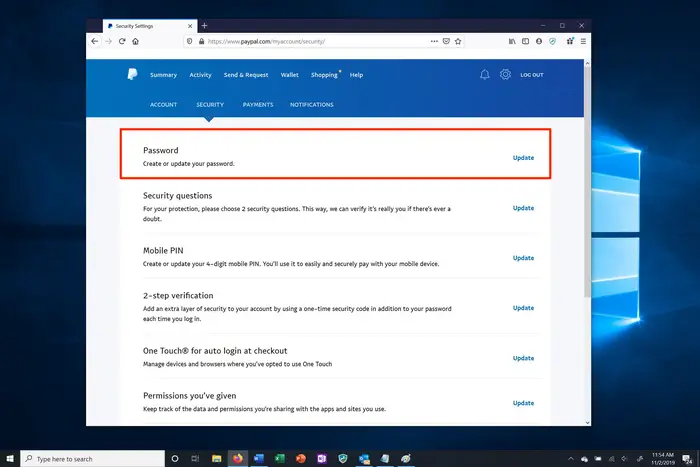
3. Go to the Security tab by clicking on "Security."
4. Select "Password" to proceed with the password change.
5. Input your current password, followed by the new password of your choice.
6. Finalize the process by clicking on "Change Password."
Reset PayPal Password When Unable to Log In
1. Access PayPal.com through a web browser.
2. Click the "Log In" button in the top right corner of the screen.
3. Select "Having trouble logging in?"
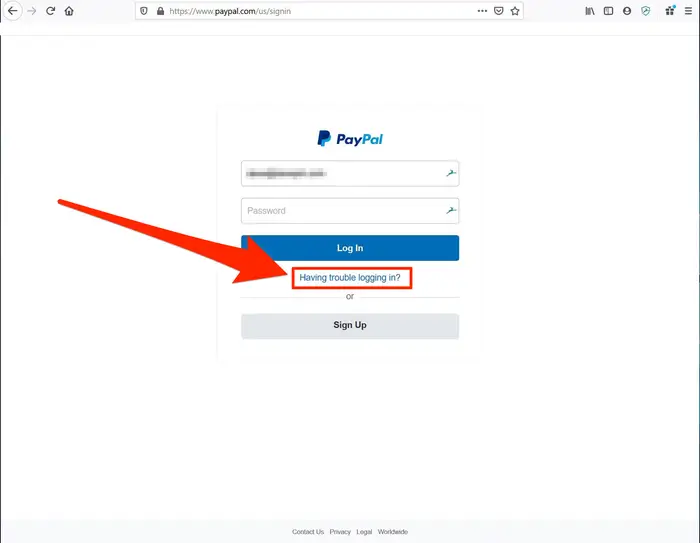
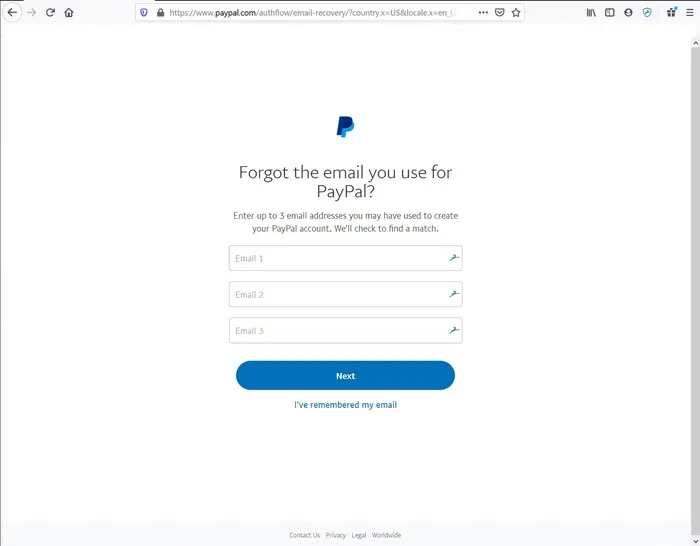
Follow the prompts to reset your password. You can either enter the email address associated with your account and click "Next" to receive a password reset email, or if you're unsure of the email address, click "Forgot your email?" and enter up to three possible email addresses used with the account. A reset email will then be sent."
After updating your password, refer to the Beginner's Guide to PayPal for additional useful advice.
