
How to Change or Reset Instagram Password

Fortunately, you can easily update your Instagram password whether you are using a computer or a mobile device in just a few steps.
Note: If you log in to Instagram through Facebook, you must change your password through Facebook's settings, not through Instagram.
Change your Instagram Password using the Mobile App:
The process to change your Instagram password in the mobile app is similar for both iOS and Android devices.
Here are the steps:
1. Launch the Instagram app.
2. Go to your profile page by tapping the account icon in the bottom-right corner.
Note: If you have multiple Instagram accounts and want to change the password for a different account, tap and hold the account icon at the bottom of the screen and select the desired account from the pop-up window.
3. From the profile page, access the settings menu by tapping the three horizontal lines in the top-right corner and selecting "Settings."
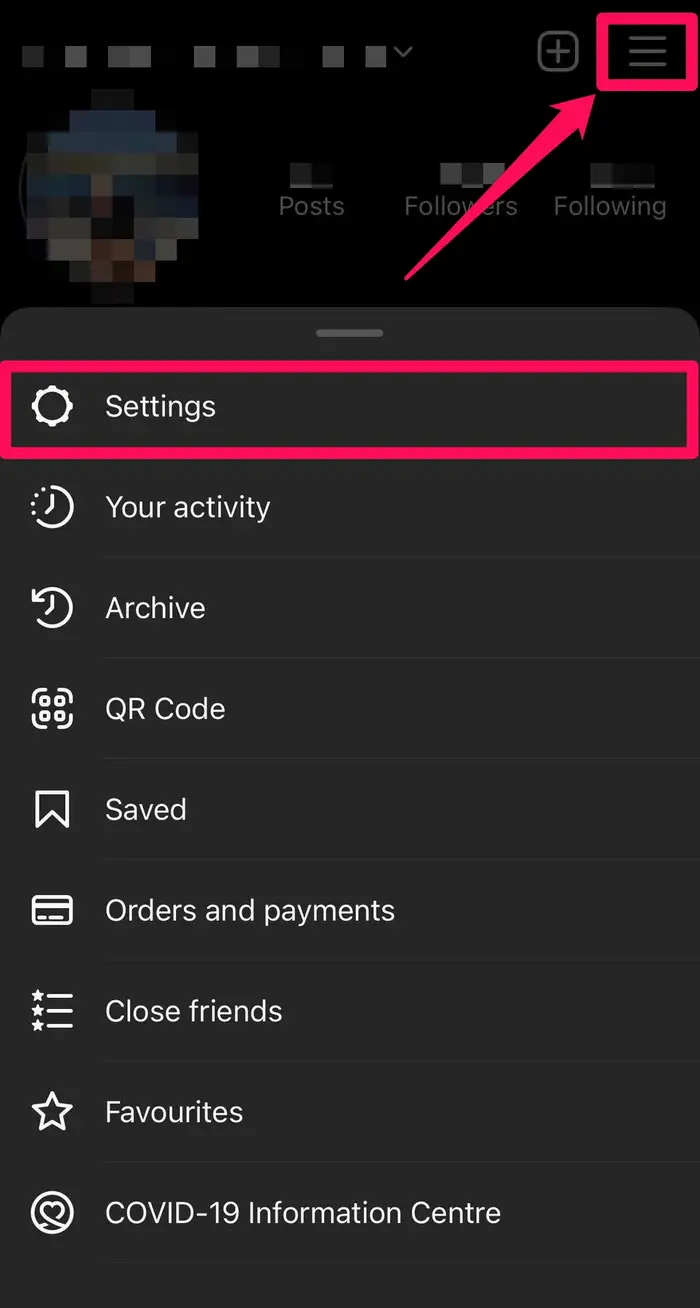
4. Tap "Security."
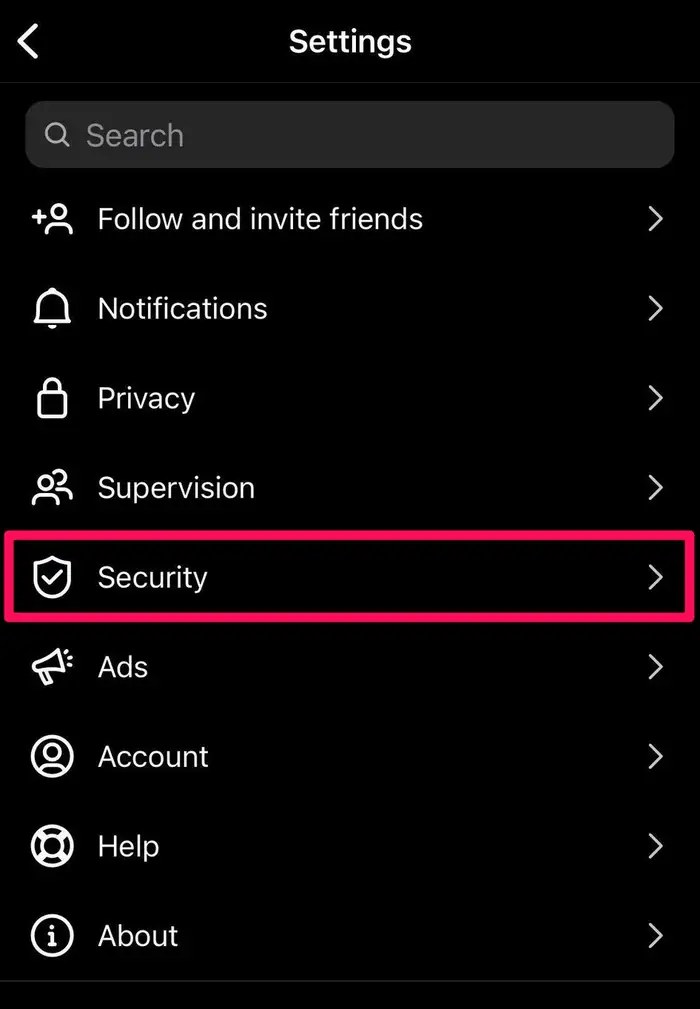
5. On the Security page, select "Password."
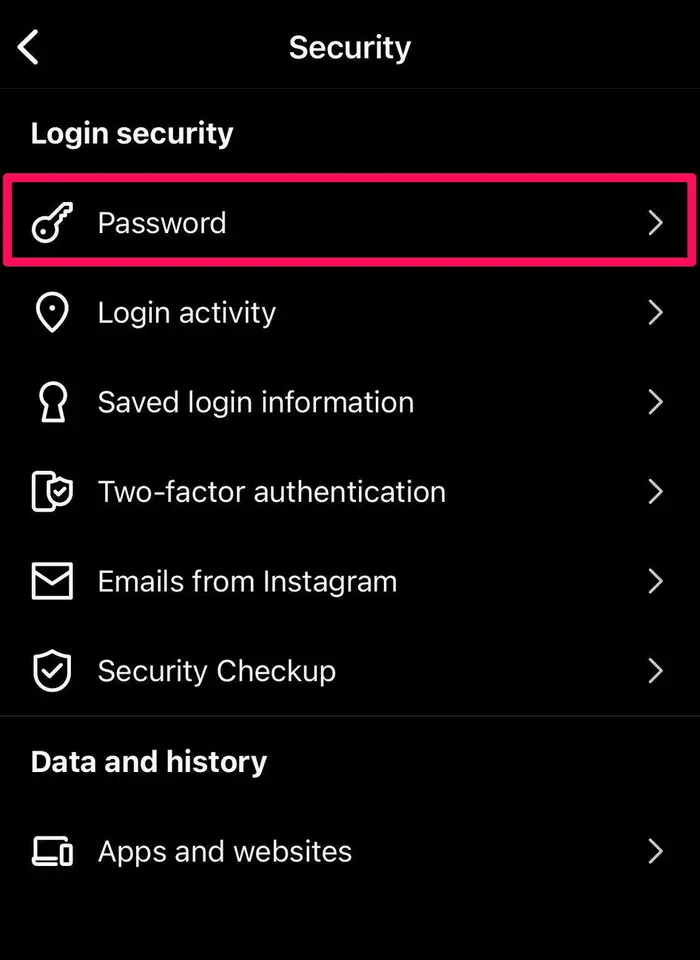
6. Enter your current password, then enter the new password you wish to use. Finally, tap "Save" (on iOS) or the checkmark (on Android) to save the changes.
Change your Instagram Password on Desktop:
1. Go to the Instagram website.
2. Access the menu by clicking the hamburger icon (represented by three dots) in the bottom-left corner, then selecting "Settings."
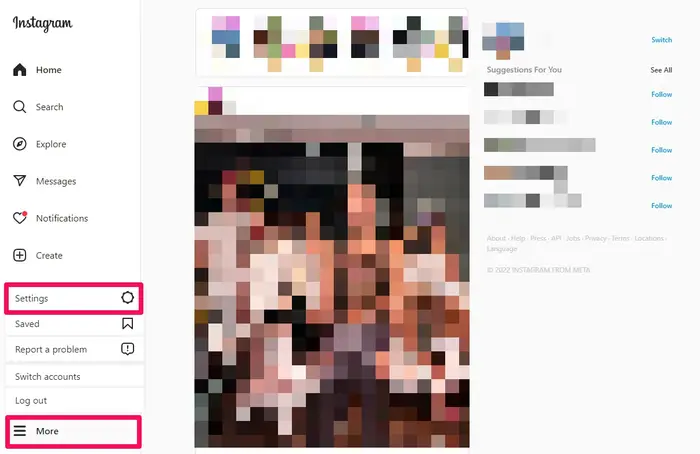
3. From the left side menu, select "Change Password."
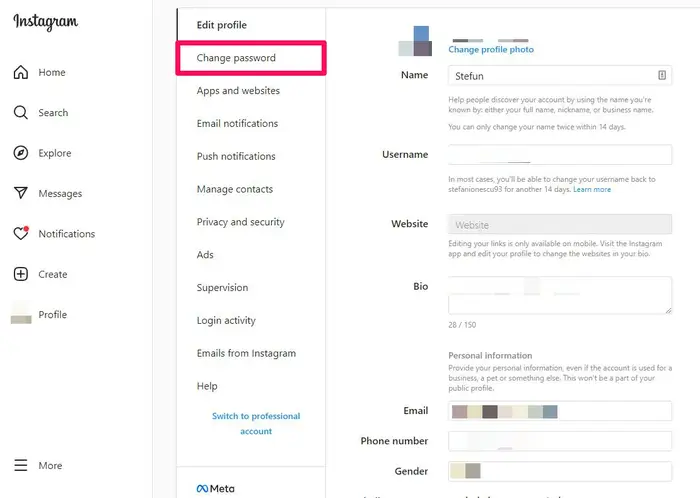
4. On the right side, enter your current password, then type your desired new password. Finally, click "Change Password" to save the changes.
Reset your Instagram Password:
Resetting your forgotten Instagram password is a simple process that can be done either through the mobile app or on a desktop browser. Here's how:
Android App
1. Launch the Instagram app on your Android device and navigate to the login screen.
2. Tap the "Get help logging in" option located below the username and password fields.
3. Enter either your email address, phone number, or username and select "Next."
4. You will receive a message with instructions on how to reset your password."
iOS App
Desktop
1. On the Instagram login screen in a browser, click the "Forgot password?" link located under the username and password fields.
2. Enter your email address, phone number, or username and click the "Send Login Link" button.
3. You will receive a message with instructions on how to reset your password.
After updating your password, refer to the Beginner's Guide to Instagram for additional useful insights.
