
How to Change or Reset ID.me Password
If you have forgotten the password for your account, don't worry. You can reset it easily. This article will guide you through the process of signing in when you have forgotten your password.
Change or Reset ID.me Password
1. Click on "Forgot password".
2. Input the email address associated with your ID.me account and click "Continue."
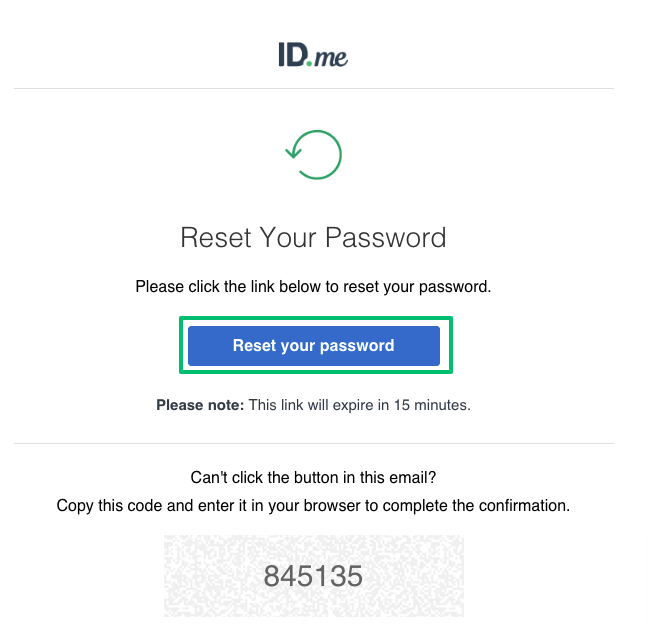
3. Check your email inbox. You should receive an email with the subject line: "ID.me - Your password reset link." Note that it may take up to 10 minutes for the email to arrive. If you do not see the email, please check your spam folder.
4. Click on "Reset your password" in the email. In the new window that opens, select "Continue."
Finish multi-factor authentication
If you have enabled multi-factor authentication (MFA), you will be prompted to authenticate using your MFA sign-in method. If MFA is not set up, you will be asked to enter your new password.
To sign in using your MFA method, follow these steps:
- Choose the MFA method you have set up.
- Use your mobile device to complete the authentication process.
If you have obtained a new phone or lost your device, select "Recovery code" and enter the code. In the case that you do not have your recovery code, reach out to ID.me support by selecting "Can't sign in or don't have an account."
Input a New Password
Once you have completed the multi-factor authentication process, enter your new password and click "Continue."
Please note that your password is case-sensitive and must meet the following requirements: a minimum length of eight characters, with at least one lowercase letter, one uppercase letter, and one number.
You will receive a confirmation message once your password reset is successful.
If you have any inquiries, including security-related concerns, you can contact the ID.me Customer Service Number for assistance.
