
How to Change or Reset Gmail Password

If you have discovered that your Gmail password is not working, it can be a cause of concern and you may wonder if your account has been hacked or if you simply forget the password. However, it is unlikely that your account has been hacked as Google sends notifications and alerts whenever someone logs into your account from a new device or changes your password.
Despite this, not being able to access your email can be a frustrating situation and you would want to resolve it quickly. The good news is that resetting your Gmail password is a straightforward process, as long as you have set up a recovery method such as a backup email or phone number.
Here are the steps to reset your Gmail password from your phone and computer:
1. Open the Gmail login screen on your device and enter the name of the account you need to recover. Then click the "Next" button.
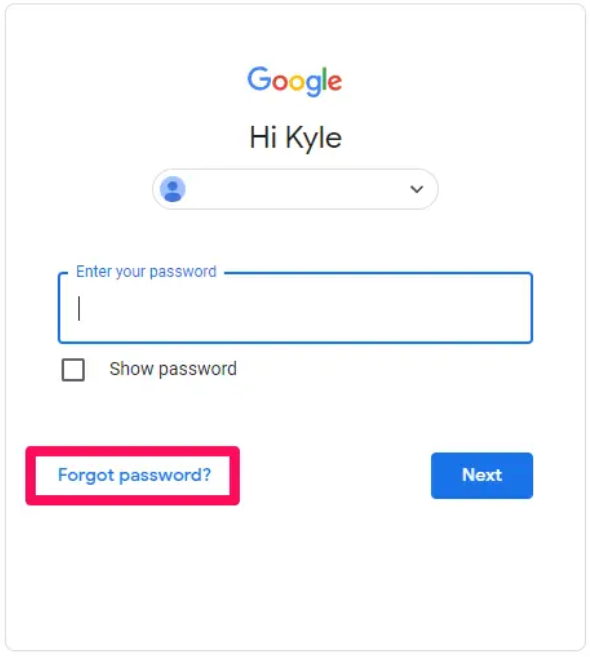
2. On the password prompt, instead of entering the password, click on the "Forgot password?" link.
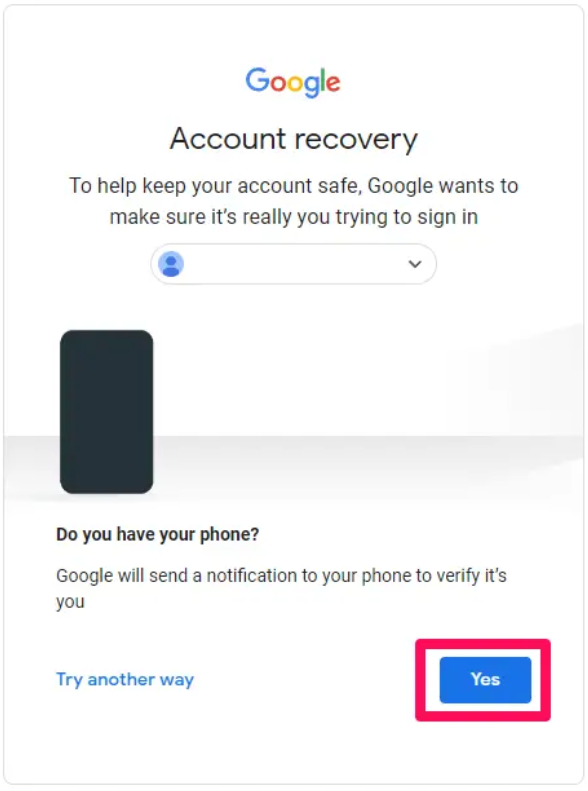
3. Gmail will then present you with various authentication methods associated with your account, such as using an authenticator app or receiving a notification on your phone. If you choose the latter, simply press "Yes" on the notification to reset your password.
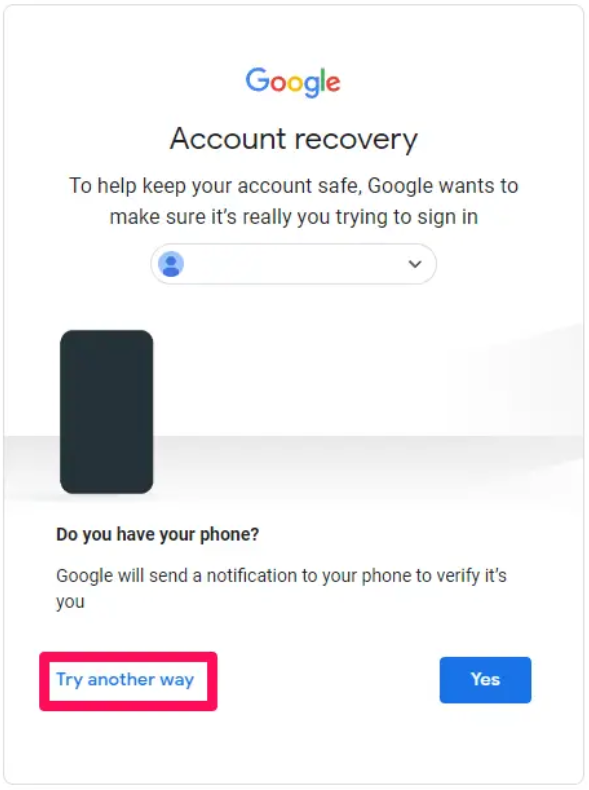
4. If the given method does not work for you or you don't want to use it, click on "Try another way," which is located in the bottom left of the screen.
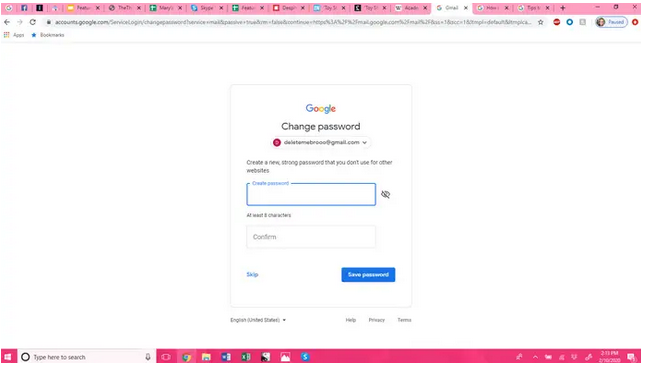
5. Once you have successfully verified your identity, Gmail will prompt you to set a new password. It is recommended to choose a strong password that is easy to remember or store it securely.
As a last resort, supply an accessible email to Google for assessment of your issue. They will examine your case and determine if recovery of the account is possible, but no guarantees can be made.
After changing your password, we suggest referring to the Beginner's Guide to Gmail for additional helpful tips.
