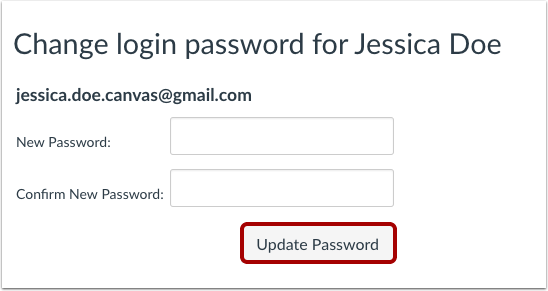
How to Change or Reset Canvas Password

How to Change your Canvas Password as a Student
You may be able to modify your password in your profile settings. If this option is unavailable, your password is managed by your institution. To change it, reach out to them for information.
If you can change your password, there are no restrictions on frequency. To keep your passwords secure, it's recommended to change them frequently. Here are some best practices for creating strong passwords:
- Have at least 8 characters (more is better), but anything over 15 characters may be hard to remember.
- Combine upper and lower case letters, numbers, symbols, spaces, and punctuation in a random pattern.
- Avoid using words found in dictionaries, including foreign languages.
Access User Settings:
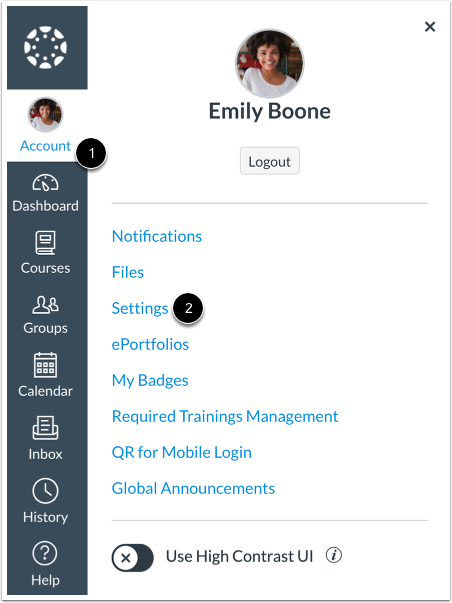
To access the Global Navigation, click on the Account link [1] and then click the Settings link [2].
Modify Settings:
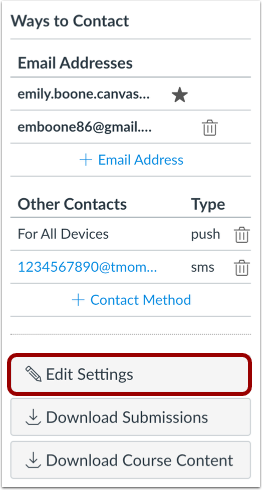
Press the "Edit Settings" button.
Change Password:
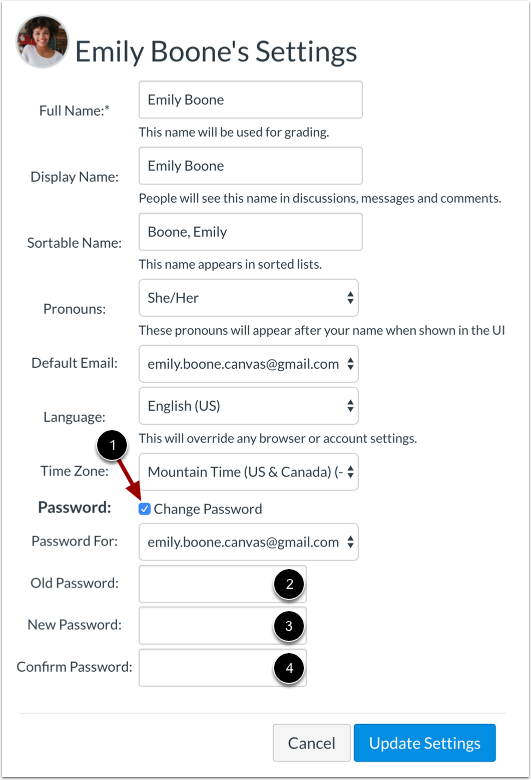
If you cannot change your password, reach out to your institution for assistance. They will guide you on how to update your password.
Update Settings:

How to Reset your Canvas Password as a Student
To reset your Canvas password, you can follow the password reset link in the email if you created your own account. However, if your login credentials were provided by your institution, you may not have the ability to reset your password independently. If you log in to Canvas through your institution's authentication system, reset your password on your institution's website. If the password reset email does not contain a password reset link, it will specify the institution that provided your password and your Canvas email address. To change or confirm your password, reach out to the system administrators at your institution.
Notes:
- It may take up to five minutes for the password reset email to arrive in your inbox.
- Password reset emails become invalid after two hours.
Troubleshooting Email Errors:
If you've tried to reset your password and have not received the password reset email, consider the following tips:
- Check if you entered your email address correctly. Misspelling is a common issue.
- Make sure you are accessing the correct Canvas URL. You may not receive the reset email if you are trying to reset your password on a site where you are not enrolled.
- If your Canvas email is sponsored by your institution, ensure that it is not being blocked by your campus firewall system. Contact your institution's IT department for assistance if necessary.
- Ensure that you are the owner of the email address you used to reset your password. If the email address is owned by someone else and you can't receive emails for it, you won't be able to receive the password reset email. Contact the owner of the email address for help.
Reset Password:
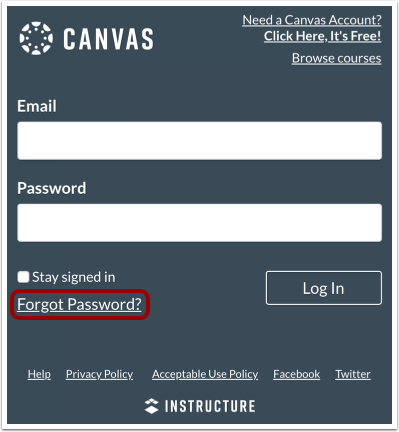
To reset your password in Canvas, open the login page in a new browser window and click on the "Forgot Password?" link. If the password reset link is not visible, reach out to your institution for help.
Request Password:
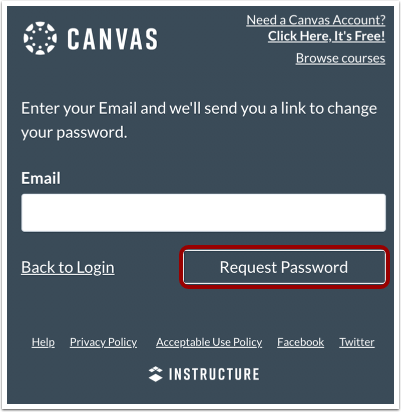
Input the login information linked to your Canvas account and click the "Request Password" button.
Note: The password reset process checks your reset information using your login information. The specific login requirements may vary depending on your institution.
Check the Password Recovery Notification:

View Email:

Go back to your email and log in. Locate the "Forgot Password" email (if it's not in your Inbox, check your Spam folder).
If your login information is linked to multiple email addresses, password reset instructions will be sent to all of them.
Access the Password Link:
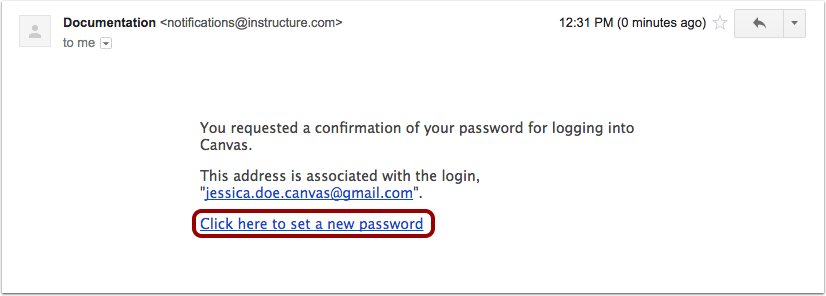
Note: The password reset email will become invalid after 2 hours.
Modify Password: