
Beginner's Guide to Zoom

Zoom is a cloud-based virtual meeting platform designed for seamless one-on-one or team communication. This tool offers a comprehensive range of audio, video, and collaboration features that connect remote team members in real-time.
Some of the standout features of Zoom include:
- High-definition video conferencing
- Voice over Internet Protocol (VoIP) audio conferencing
- Instant messaging
- Customizable virtual backgrounds for video calls
- Screen sharing and interactive whiteboards
- Hosting engaging video webinars.
A Guide to Setting Up a Zoom Meeting:
Desktop
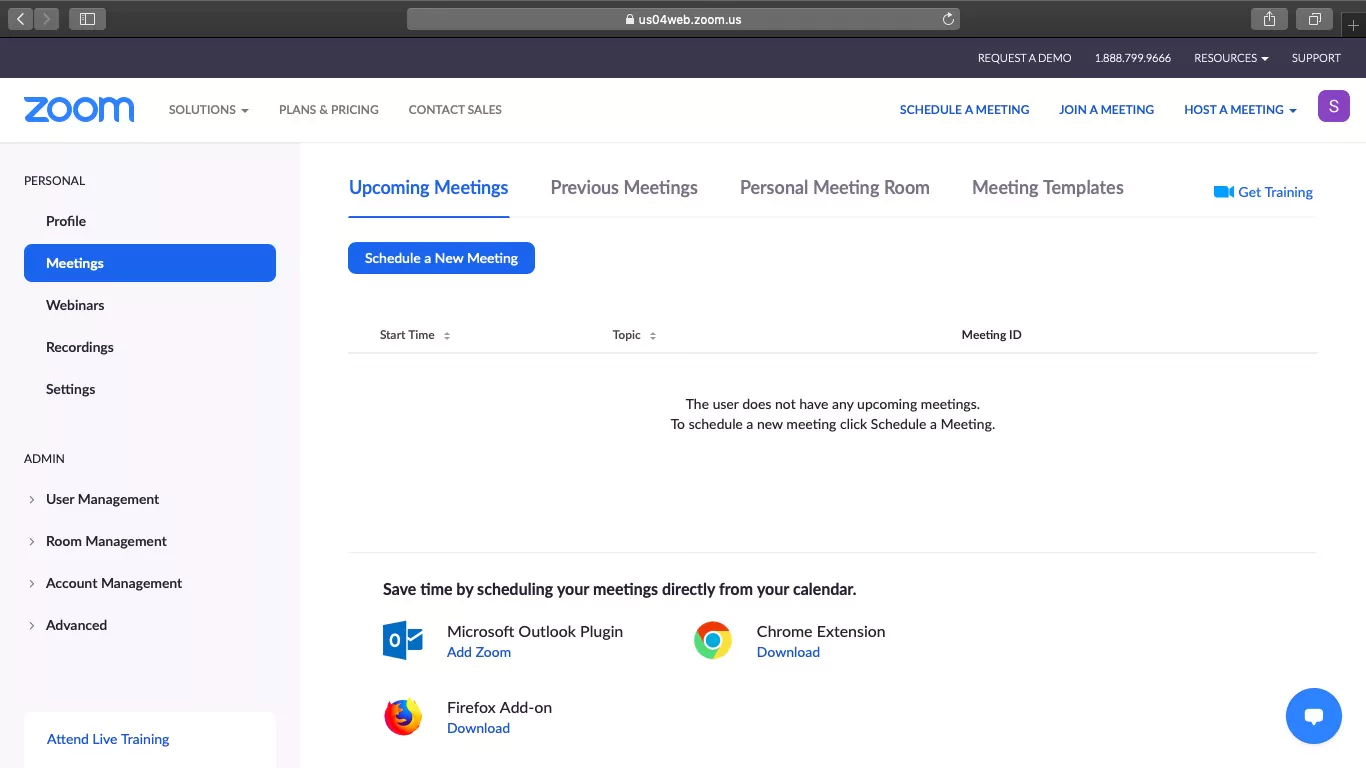
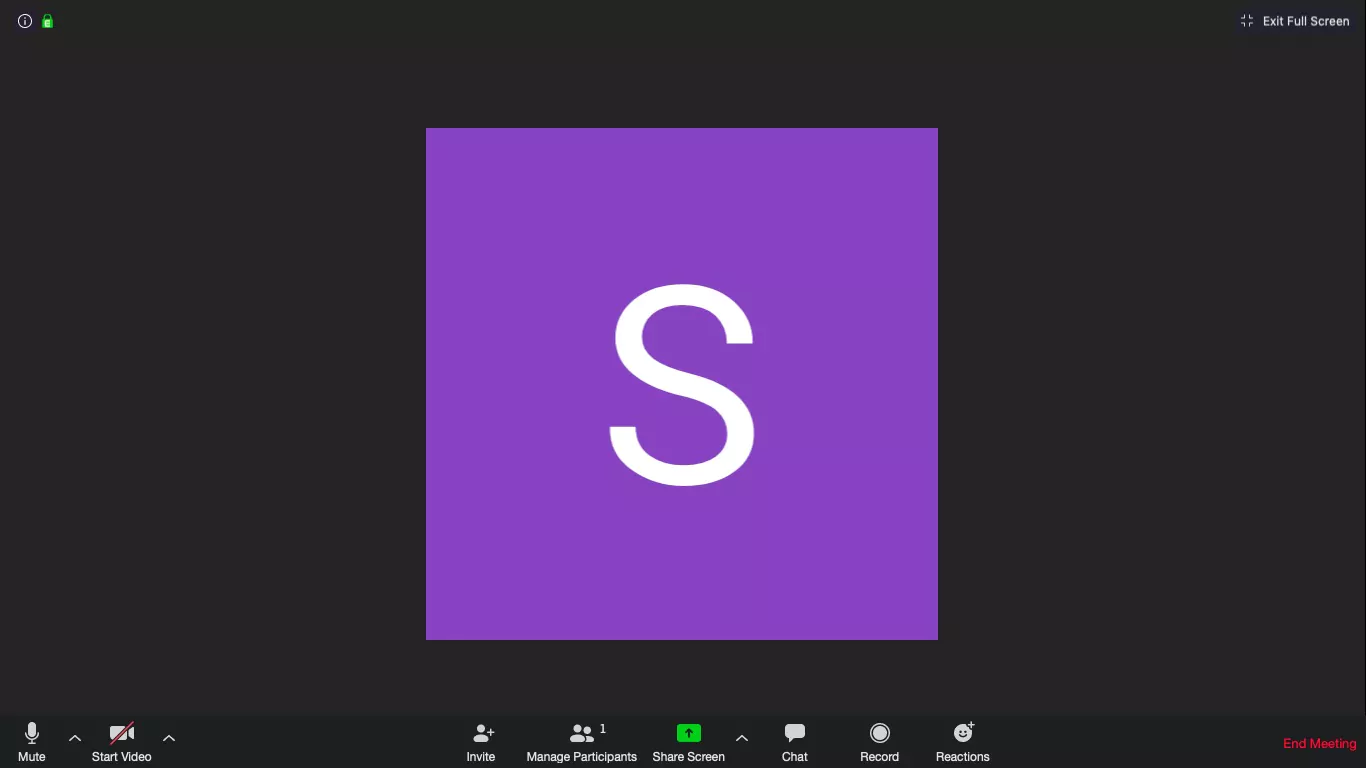
- With Video On
- With Video Off
- Screen Share Only
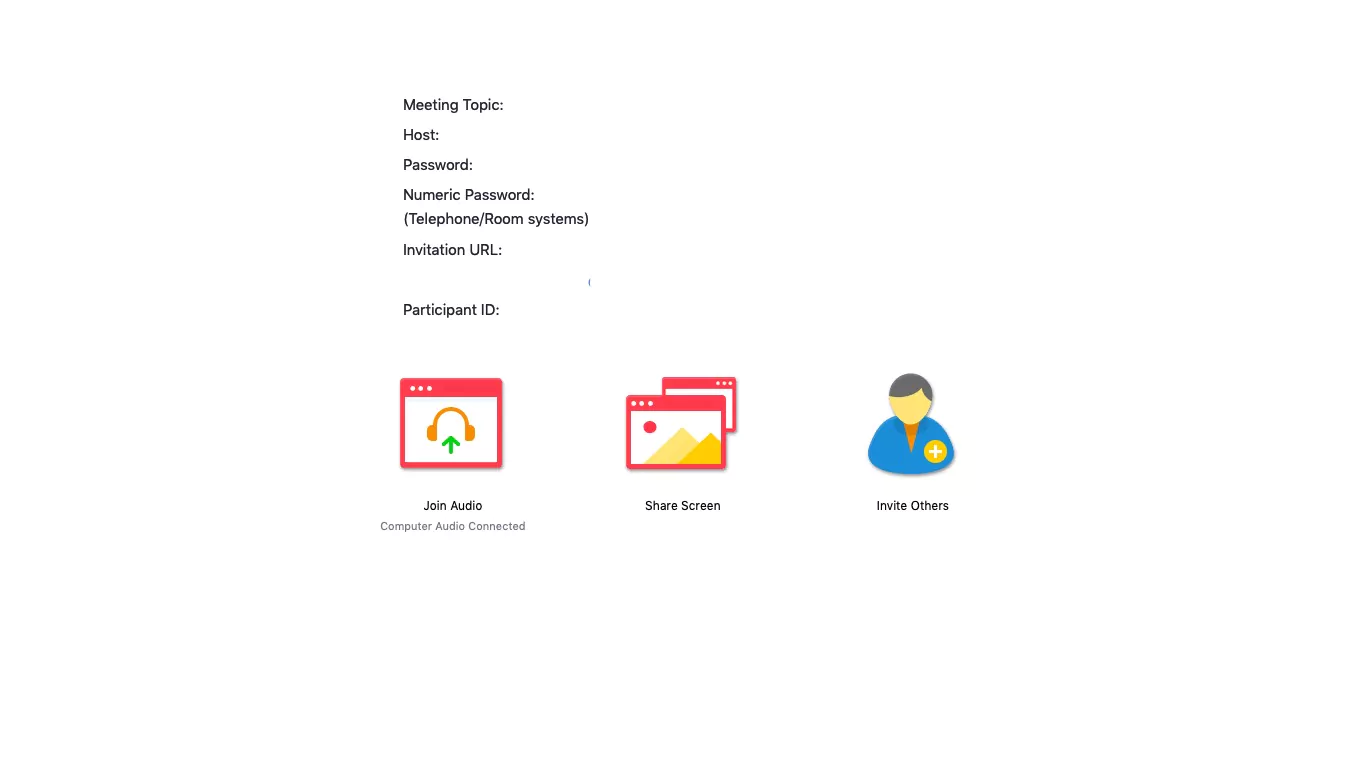
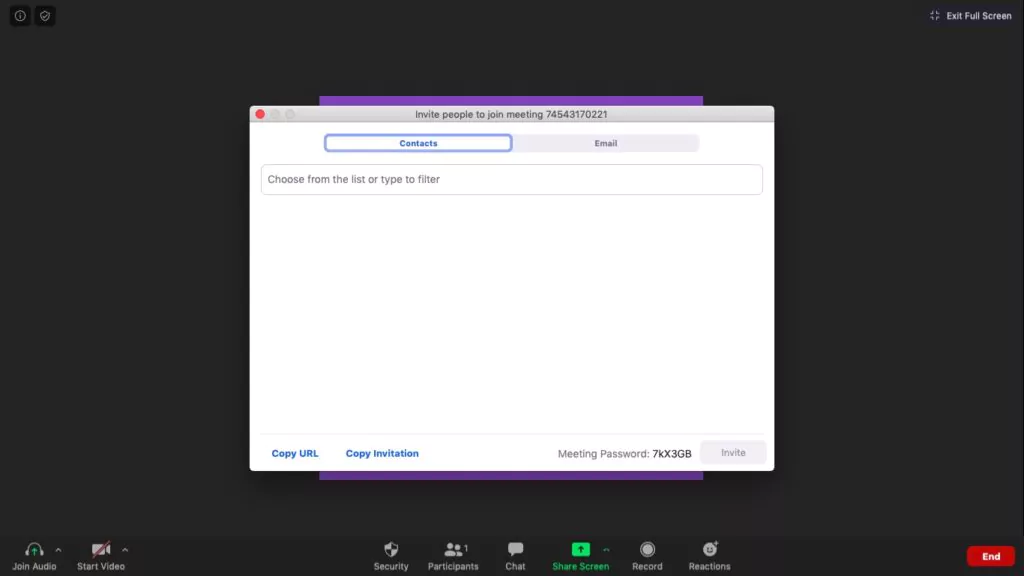
Adding Participants
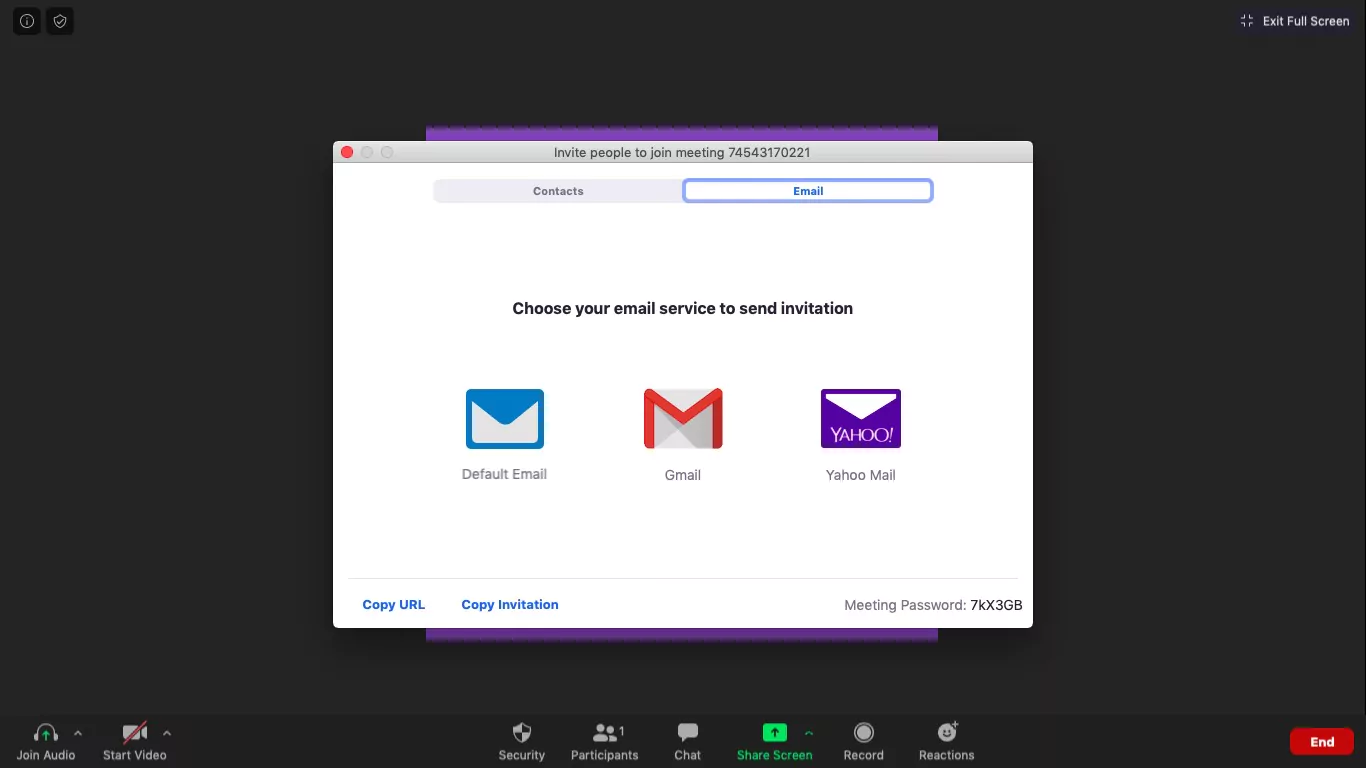
Mobile
Adding Participants
Zoom enables sharing of meeting details through text, email, and messaging apps on your phone.
Once you have created your account, logging into Zoom is a simple process.
Steps to Join a Zoom Meeting:
Steps apply to both desktop and phone:
1. Join with Meeting Link
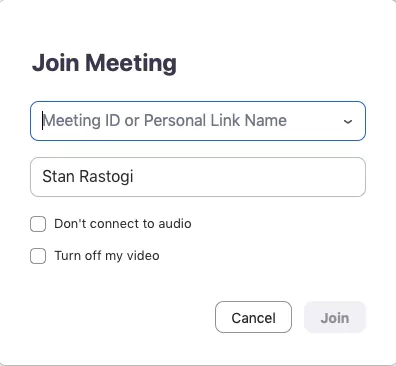
2. Join with Meeting ID
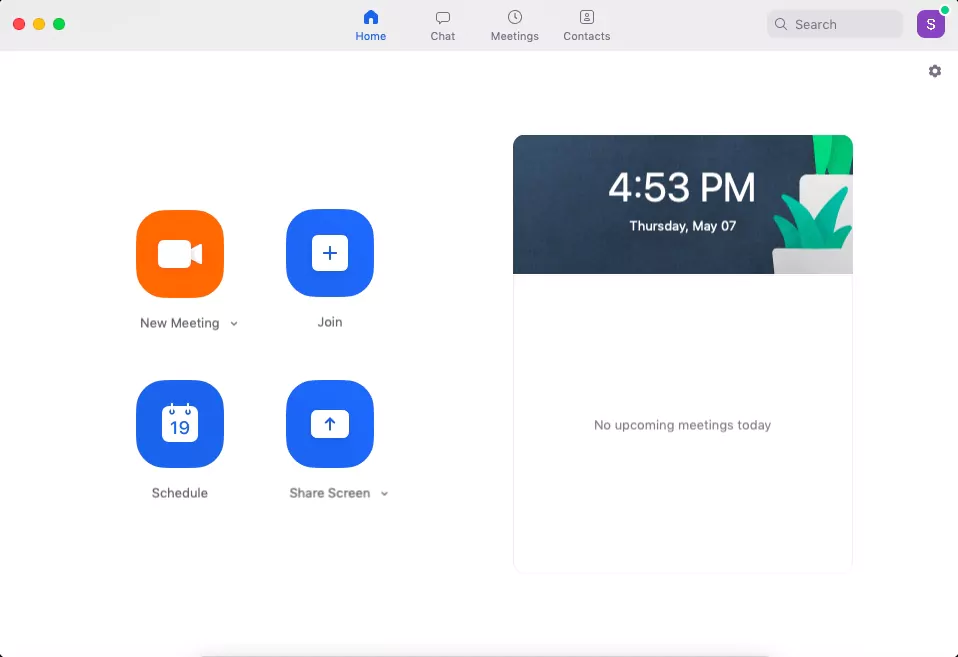
Open Zoom app, click on "Join" icon:
Paste Meeting ID in box, add display name, click "Join" button:
Instructions for Scheduling Meetings:
Avoid missing appointments with easy scheduling in Zoom. Set date/time, meeting ID, password requirements, and more.
Desktop
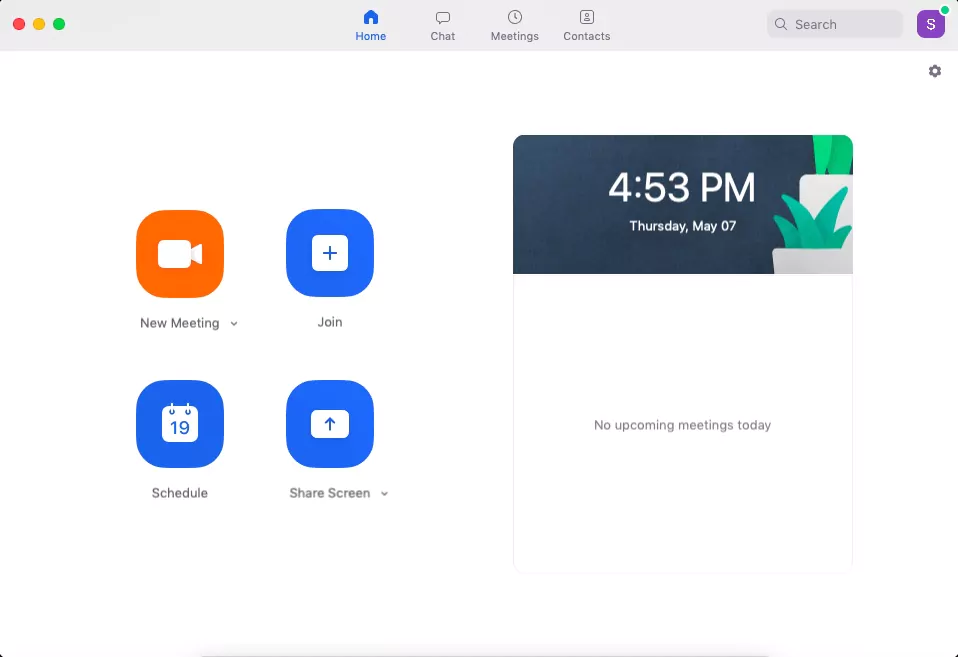
1. To schedule a meeting on Zoom, go to the app and press the blue "Schedule" button, which is shaped like a calendar.
2. In the "Schedule Meeting" pop-up that appears, enter meeting information, including date, time, privacy and access settings, and your desired calendar (iCal, Google Calendar, etc.) for scheduling the event.
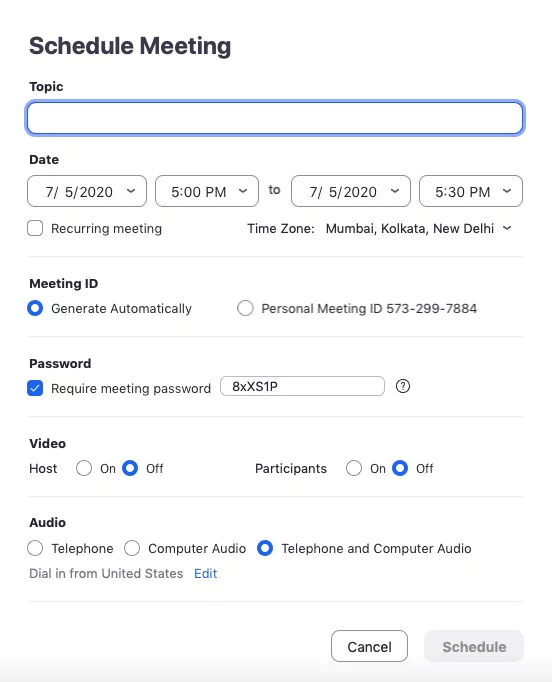
Tip: To prevent Zoombombing, where uninvited attendees join and disrupt the meeting, consider setting a password for the meeting.
3. After adjusting preferences, click the "Schedule" button located at the bottom right of the screen.
Mobile
1. Launch the Zoom app.
2. Navigate to the Meet & Chat homepage and press the "Schedule" button.
3. Insert the meeting name, date, and time, and then select "Done."
4. Zoom will take you to another form where you can add the event to your preferred calendar. Fill in details such as participant names and configure the notifications for your calendar event, then press "Done."
You have successfully scheduled a Zoom meeting!
Instructions for Recording Zoom Meetings:
Zoom enables you to record meetings effortlessly and save them either to your local device or the Zoom cloud. By saving it to the Zoom cloud, your team members can access it seamlessly across different platforms.
To record a Zoom meeting, follow these steps:
Desktop
1. Initiate a meeting.
2. In the Zoom menu bar, press the "Record" button.
3. Opt for "Record on this Computer" or "Record to the Cloud." This will initiate the recording, and all participants in the meeting will see the word "Recording" in red at the top of their screen.
4. Click "Pause/Stop Recording" to discontinue the recording of the meeting. Alternatively, you can also end the meeting to stop the recording.
5. After the meeting is concluded, Zoom will convert the recording to MP4 format and save it in the location you specified. You can now conveniently access your recorded sessions at any time!
Mobile
1. During a meeting, select the "More" option in the toolbar by tapping on it.
2. Begin recording by choosing the "Record to Cloud" feature.
3. The recording can be paused or stopped by clicking the "More" button.
4. Following the meeting, your recording can be located in the "My Recordings" section. To access this, log into your Zoom account through a web browser.
Instructions for Tracking Attendance in Zoom:
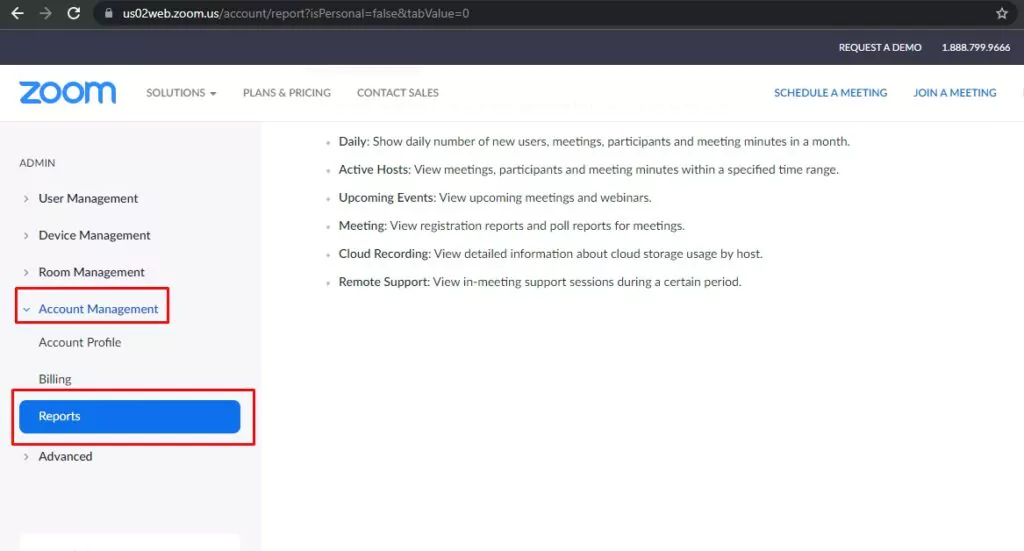
To access the attendance report as the owner or administrator of a pro Zoom account, go to the Reports section of the Zoom web portal. Review the various Zoom statistics available, including registration data, attendees list, webinar poll results, performance, and Q&A.
1. Access your account on the Zoom web portal by logging in.
2. To access the reports in the Zoom web portal, go to the left panel and click on the "Reports" link. If you are an administrator, you can find the "Reports" link under the "Account Management" section in the same panel.
3. To view your previous Zoom meetings and the related information:
- Navigate to the "Usage Reports" section.
- Select "Usage."
- All of your previous Zoom meetings will be listed, including the following information for each meeting: meeting topic, meeting ID, start and end time, duration, and number of participants.
4. Choose the desired date and then click on the "Search" button.
5. To generate a Meeting Participants report:
- Click on the "Participants" link.
- The report will display the following information for each meeting participant: name, joining time, leaving time, and meeting duration.
6. Export the report as a CSV file.
3 Features of Zoom and Their Effective Usage:
While you are now familiar with Zoom Meetings, it can still feel overwhelming with all of its features. To help, this guide will provide a closer look at three additional features of Zoom and how to use them effectively.
Screen Sharing
Zoom makes it simple to share your screen with other participants in a meeting. This feature allows you to:
- Host virtual presentations and workshops
- Explain processes thoroughly
- Collaboratively review work and project documents with your team.
To share your screen, simply click on the "Share Screen" icon in the toolbar at the bottom of the screen. You can choose to share:
- A specific app or window
- A whiteboard
- The screen of your Apple iPhone/iPad (if your device supports this).
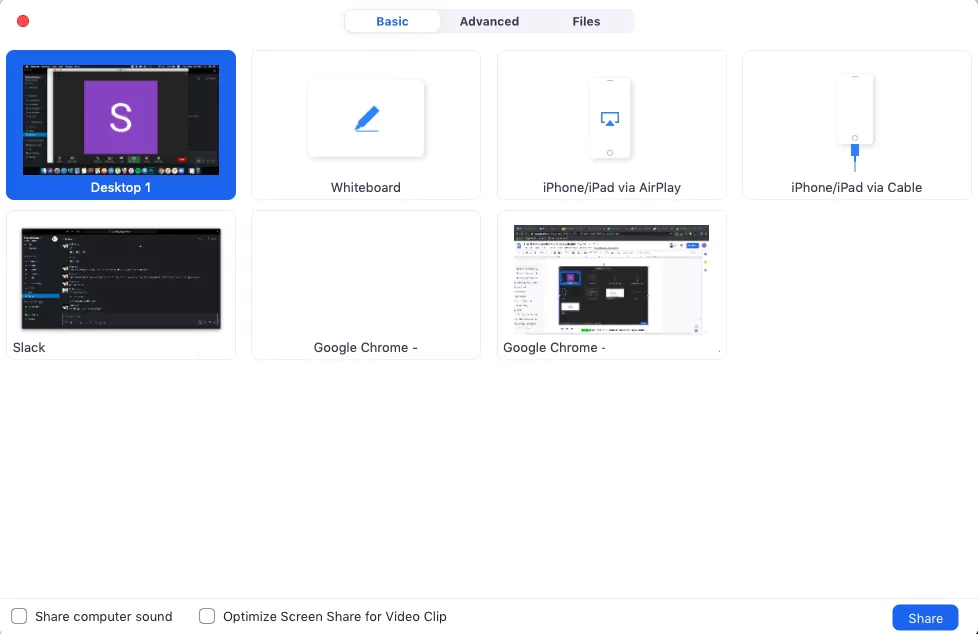
If you're looking for additional screen sharing options, simply click the "Advanced" tab located at the top of your screen. From there, you have the option to share a specific portion or all of your screen, either with or without audio from your computer or microphone. Additionally, you can also choose to share content from a secondary camera or content solely from your screen.
Cloud-Based Calling Solution - Zoom Phone
Zoom Phone is a cloud-based calling solution that utilizes Voice over Internet Protocol (VoIP) technology. With Zoom Phone, you can make calls through the internet, similar to traditional phone calls.
In addition to basic call functionality, Zoom Phone also comes equipped with a number of advanced features to enhance your calling experience, including integration with CRM platforms like Salesforce, call conferencing, delegation, and recording, as well as voice mail capabilities.
Please note that Zoom Phone is not included in the standard pricing plans and must be purchased as a separate add-on. The starting price is $10 per user per month, with a minimum requirement of at least one paid licensed host.
Virtual Meeting Spaces - Zoom Rooms
Zoom Rooms are virtual meeting spaces designed for exclusive use by selected participants. They provide an array of options for video conferencing, audio conferencing, and screen sharing.
With Zoom Rooms, you can enjoy a range of features, such as one-touch sharing and conferencing, the ability to use up to 12 whiteboards simultaneously, and digital signage display options for your office.
Please note that using Zoom Rooms may require additional hardware, such as multiple webcams, connectors, monitors, and other conference room equipment, as well as considerations for the design of your conference room. Additionally, Zoom Rooms are not included in the standard pricing plans and must be purchased separately for $49 per room per month.
Affordable Meeting Solutions - Zoom Pricing Options
Zoom offers four different pricing plans to accommodate your unique requirements:
- Basic: This plan is free and includes the ability to host up to 100 participants, unlimited one-on-one meetings, video conferencing, screen sharing, local recording, and scheduling through Chrome extensions.
- Pro: For $14.99 per month per host, this plan includes all the features of the Basic plan, as well as usage reports and 1 GB of cloud storage.
- Business: Priced at $19.99 per month per host, the Business plan includes all the features of the Pro plan, the ability to support up to 300 participants, and an admin dashboard.
- Enterprise: This plan, priced at $19.99 per month per host, includes all the features of the Business plan, the ability to support up to 500 participants, and unlimited cloud storage.
