
Beginner's Guide to PowerSchool

The PowerSchool Student Portal
The PowerSchool Parent Portal
Locating the URL for PowerSchool for Students
Finding the PowerSchool for Students URL is relatively easy. Each educational institution has its own student portal, and the URL for the portal is usually available on the school or district's website, under the "Parents" or "Parent Resources" section. If you're unable to find it on the website, you can perform a quick internet search using the keywords "student powerschool" followed by the name of your school or district. This should help you locate the correct URL for your child's PowerSchool portal.
Locating the URL for PowerSchool for Parents
Discovering Your District Code
Determining your District Code is a simple process that can be accomplished in a few ways. You can find it by logging into your school's web portal, where it should be displayed in a black box in the lower left-hand corner of the screen. Alternatively, you can use the PowerSchool app to obtain your District Code. To do so, follow these steps:
- Tap on "Where is my district code?" located below the District Code entry boxes.
- Tap on "Search for Your District" at the bottom of the screen.
- Enter your school's URL into the third box.
- Tap on "Submit."
Adding an Additional Student to Your Parent Account
If you have more than one child attending the same school, or if you have been instructed to use the same District Code or web address, you can easily add them to your parent account through the web portal. Here's how:
- Sign in to the web portal and click on "Account Preferences" in the left menu.
- Under "Account Preferences," click on the "Students" tab.
- Click on the "Add +" button and follow the prompt to add your second student to your account.
If your children attend different schools that use different District Codes or websites, you will need to sign out and then sign back in to view each child's information. This is because the District Code is an integral part of your login credentials, and it helps the app determine which server to connect to when verifying your username and password.
Updating Your Parent Account's Email Address
To change the email address associated with your parent account, you can do so through your school's web portal. Here's how:
- Sign in to the web portal and click on "Account Preferences" in the left menu.
- Select the "Profile" tab.
- Update the email address on this page and click on "Submit."
It's important to note that some school districts may have disabled the setup screen, in which case you will need to contact your school administrator directly to make changes to your email address. If you need to change the email address for your student, you should also reach out to the school directly.
Resolving the "Disabled Feature" Error in PowerSchool
To resolve this issue, you can reach out to your school district and bring this to their attention. They can then contact PowerSchool support for further assistance in making any necessary changes. It's possible that the feature may have been disabled unintentionally, and your district can work with support to make sure it's properly enabled.
The PowerSchool Mobile App: An Instant Access to Student Information on the Go
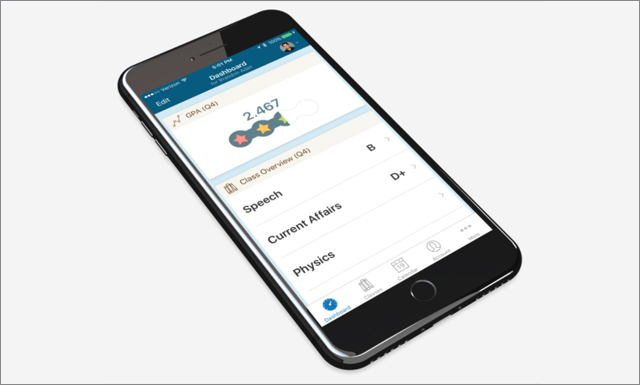
The PowerSchool Mobile App provides parents and students with quick access to critical student information, including grades, performance, and attendance. With this app, you can:
- Get real-time push notifications for updates on grades, scores, attendance, assignments, teacher comments, daily bulletins, schedules, and fee transactions.
- View information for all of your children in one convenient location.
- Check grades, assignments, attendance, GPA, and more.
- Read announcements from your school.
- Enjoy compatibility with iPhones/iOS, tablets, and Google/Android devices.
Get the PowerSchool Mobile App from either the Apple App Store for iPhones and iOS devices or from Google Play for Android devices.
Getting Started with the PowerSchool Mobile App
How can I resolve the error "Invalid Username or Password" when trying to sign in on the PowerSchool Mobile App?
If you're encountering the error "Invalid Username or Password" when trying to sign in on the PowerSchool Mobile App, you can try the following steps:
- Log into your school's website to double-check the district code.
- Ensure that the username capitalization is correct, as the app is case sensitive while the website is not.
- You can request your exact username by navigating to the school's web portal, clicking the "Forgot Username or Password?" link, and then the "Forgot Username?" tab. Enter your email address and click enter. You should receive an email from the school with the correct capitalization of your username.
- If you have verified the capitalization and can sign in via the website, send an email to mobile.support@powerschool.com with the steps you have taken so far.
If these steps do not resolve the issue, contact your school district's PowerSchool administrators for further assistance.
