
Beginner's Guide to Gmail: Essential Tips
1. Why Choose Gmail
2. Storage Capacity
Google has surpassed its competitors by offering a significantly larger storage capacity in Gmail. Currently, Gmail provides a generous 15 gigabytes of storage at no cost. This ample storage allows you to save all your critical emails for future reference. Note that the free 15 GB is shared across Gmail, Google Drive, and Google Photos. If you require additional space, you can purchase it or consider a G Suite plan for your business.
3. Layout Design
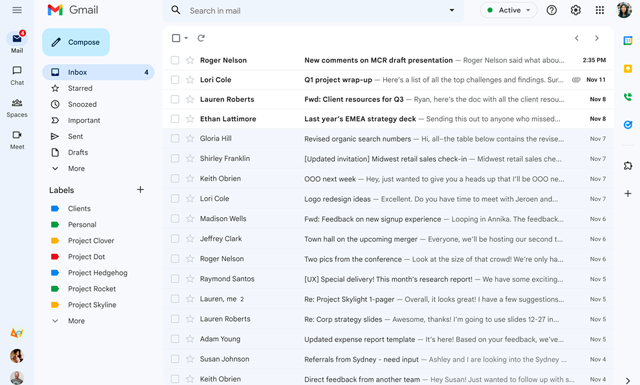
Gmail was the pioneer in revolutionizing the traditional webmail interface by introducing a more organized and visually appealing layout. It introduced the concept of grouping emails based on their subject line, making it easier to follow conversations. When you receive a reply, related messages are displayed in a collapsible thread, allowing you to view the entire conversation history with ease.
Additionally, Gmail provides the option to choose from three different inbox views: Default, Comfortable, or Compact, to best suit your preference.
4. Security and Spam Protection
Gmail prioritizes security and constantly updates its anti-malware and anti-virus scanners to ensure maximum protection for its users. For instance, all attachments are stored on Google's servers, which enables Gmail to detect and quarantine any messages with viruses or malware before they reach your inbox.
Additionally, Gmail has effective spam filters that prevent unwanted messages from cluttering your inbox.
To further safeguard your account, beware of Gmail Phishing Scams.
5. Organization Tools
An inbox can quickly become cluttered with multiple daily emails. Gmail offers several resources to help keep your inbox organized.
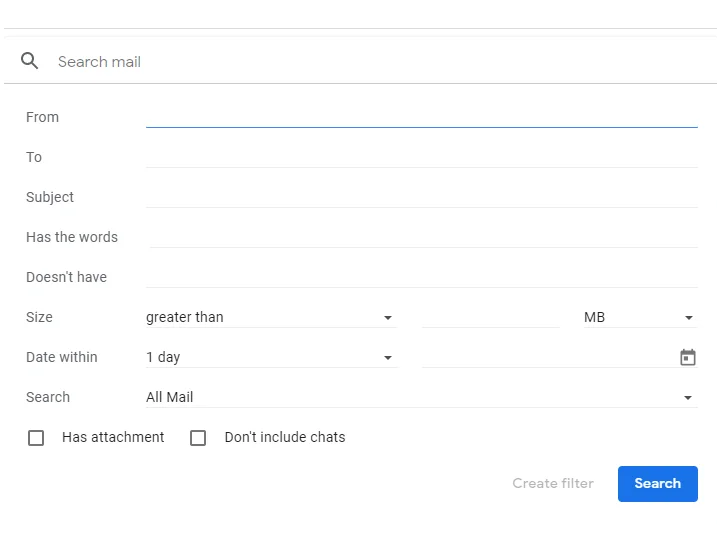
Filters: Create filters to sort and manage incoming emails. These filters can apply labels, forward messages, or delete emails automatically based on your specified criteria.
Labels: Similar to email folders, Labels allow you to categorize an email with multiple labels.
Stars: Starring messages places them at the top of your inbox and highlights them as a priority for you to attend to.
Tabs: Tabs help categorize your emails by separating them into different sections. Gmail includes standard tabs such as Primary, Social, and Promotions.
6. Gmail Search Function
7. Reverse a Sent Email
8. Smart Compose Feature
Gmail's Smart Compose feature is designed to save you time when writing emails. It functions as an autocomplete tool, predicting what you want to write before you type it. This is a great feature for those who want to write emails more quickly.
The Smart Compose is powered by machine learning and becomes more personalized the more you use it. Its suggestions will reflect your writing style, allowing you to maintain your own unique tone.
To use the Smart Compose, simply press the right arrow button when the prediction matches what you want to write. If the suggestion is not what you're looking for, you can easily ignore it.
To turn Smart Compose on or off, follow these steps:
- In the top right corner of Gmail, click the gear icon for the settings menu and select "Settings".
- On the "General" tab, scroll down to "Smart Compose".
- Choose "Writing suggestions on" or "Writing suggestions off".
Additionally, you can choose to have Smart Compose personalized to your writing style right above the option to turn it on or off.
9. Gmail's Offline Availability
Gmail offers a convenient feature for when internet connectivity is limited or unavailable. With this feature, you can still access Gmail and complete important tasks.
To activate this feature, follow these steps:
- Click on the gear icon in the upper right corner of the page.
- Select "Settings".
- Go to the "Offline" tab and check the box "Enable offline mail".
- New options will appear, allowing you to store emails from the past 7, 30, or 90 days.
10. Gmail Templates for Improved Productivity
If you find yourself sending the same responses over and over in emails, Gmail Templates can help increase your efficiency. Instead of manually typing out repetitive messages, you can create pre-written templates.
To set up templates, follow these steps:
- Click the gear icon and select "Settings".
- Go to the "Advanced" tab.
- Check the box next to "Templates" and hit "Save Changes".
- To create a new template, click "Compose" in the upper left corner and type your message.
- Click the three dots icon at the bottom of the compose window, select "Templates", and choose "Save draft as template" followed by "Save as new template".
- Give your template a name.
