Beginner's Guide to Facebook: Essential Tips
1. Manage Facebook Ad Preferences for Enhanced Privacy
When you sign up for a Facebook account, you are essentially providing the platform with your personal data. This is the reason Facebook is able to offer its services for free. However, many users are not aware of the extent to which Facebook uses their data for targeted advertising.
While it is not possible to completely prevent Facebook from collecting your data, you can take control over the way your data is utilized for advertising purposes. Here's a guide to help you edit your Facebook Ad preferences and ensure that your personal data is not misused.
Step 1: Access Ad Settings To start, click on the gear icon located in the upper right-hand corner of your Facebook account. From there, navigate to 'Settings', then 'Ads', and finally, 'Ad Settings'.
Step 2: Edit Ad Preferences In the Ad Settings section, you will see three options that you can adjust to limit the use of your data for advertising:
- Ads based on data from partners
- Ads based on your activity on Facebook Company Products that you see elsewhere
- Ads that include your social actions
Step 3: Set Ad Restrictions Set the first two options to 'Not Allowed' to prevent Facebook from using data collected from third-party sources for advertising purposes. For the final setting, 'Ads that include your social actions', select 'No one' to restrict Facebook from using your likes, comments, and other social interactions for advertising.
By making these simple changes to your Ad Settings, you can take control over how your personal data is used for advertising on Facebook. Stay vigilant, and protect your privacy on social media platforms."
2. Avoid Sharing Personal Information on Facebook
It's important to be cautious about what personal information you share on Facebook. Some users, especially those who are new to the platform, may feel the urge to complete every section on their About page, including their work, life events, family members, and more. However, it's crucial to keep in mind that not all of this information is necessary or appropriate to share on a social media platform.
A better way to think about your Facebook account is like a more advanced phonebook. You can still add your friends and post photos, but there's no need to share information that you wouldn't feel comfortable sharing with strangers in person. This includes details such as your workplace, significant life events, family members, and so on. By limiting the amount of personal information you share on Facebook, you can better protect your privacy and security online.
3. Protect Your Facebook Profile from Unauthorized Access
By default, when you create a new Facebook account, anyone with an internet connection can see all of your posts and your profile can be indexed and displayed by search engines. This means that anyone can easily find your account, including your post history, by searching for your name on Google.
To ensure the privacy of your Facebook profile, it's important to change these default settings. To do so, go to your Facebook settings by clicking on the gear icon and selecting Privacy. Adjust the settings for Who can see your future posts to Friends and change the option for search engines linking to your profile to No.
Additionally, take the time to review the other privacy settings on this page to ensure they are set according to your preferences. Use the example in the image above as a reference.
For the security of your account, you may want to change or reset your Facebook password.
4. Personalize Your Facebook News Feed
In recent years, Facebook has faced criticism for moving away from its original purpose of showcasing content from family and friends, instead prioritizing posts from companies and random messages in groups. Although the platform has since improved through algorithm changes, you can take additional steps to control what you see in your News Feed.
By using the options to hide posts, snooze users for 30 days, or unfollow users, you can indicate to Facebook what types of content you'd like to see less of or eliminate entirely. If you encounter a post that you find annoying, simply click the three horizontal dots in the top right corner of the post and select the appropriate action from the menu that appears.
In the extreme case, you can even disable your News Feed altogether. By customizing your Facebook News Feed, you can create a more enjoyable and relevant experience on the platform.
5. Access a News Feed of Facebook Pages You Like
Despite changes to the main Facebook News Feed, you can still keep up-to-date with the latest posts from the Pages you follow. The platform provides a separate feed, dedicated to posts from Pages, which you can easily access.
To find this feed, navigate to the left-hand panel of your Facebook homepage. Scroll down to the Explore section and click on Pages Feed. By selecting this option, you will be taken to a feed that displays posts exclusively from the Facebook Pages you've liked. This provides a convenient way to stay informed about the latest content from the pages you follow, without any distractions from other types of posts."
6. Organize Your Facebook Friends into Categorized Lists
The ideal number of Facebook friends can vary from person to person, depending on their intended use of the platform. However, regardless of the number of friends you have, Facebook offers a useful feature to organize and manage your connections.
You can create custom lists by clicking on Friends Lists in the left-hand panel of your Facebook homepage. Facebook will generate some lists automatically based on your work and living history, but you can create your own by clicking on Create List and manually adding friends.
Once you have organized your friends into lists, you can easily view a feed of posts from individuals in a particular list by clicking on the list name. This allows you to have more control over the content you see, making it easier to stay in touch with the people that matter most to you.
7. Get Familiar With Facebook Activity Log
8. Personalize Your Facebook Notification Settings
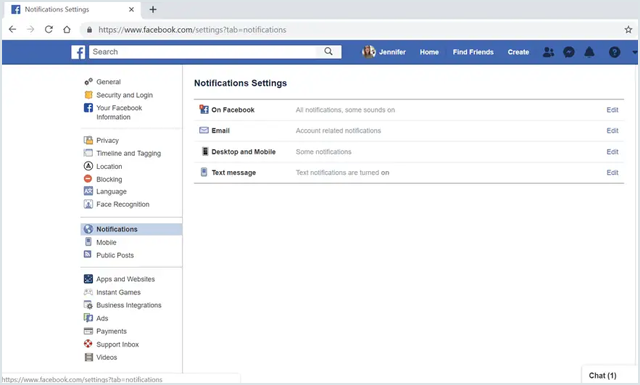
Facebook notifications can be overwhelming if you are an active user who frequently adds friends and likes pages. However, it's important to note that most notifications can be safely ignored. To make your Facebook experience more manageable, you can customize the notifications you receive. This way, you only receive the notifications that are important to you.
Customizing your notifications is easy and can be done differently for desktop and mobile.
Desktop Notifications:
- Click on the gear icon in the top right corner of the Facebook page.
- Go to "Settings."
- Click on "Notifications."
- Select "Desktop and Mobile."
- Customize your notifications as desired.
Mobile Notifications:
- Open the Facebook app on your mobile device.
- Click on the three vertical lines in the bottom right corner.
- Choose "Notification Settings."
- Customize your notifications as desired.
By customizing your Facebook notifications, you can ensure that you only receive notifications that are important to you and make your Facebook experience more manageable.
9. Finding Facebook Posts Liked by a Specific Person
You can use Facebook's search function to find content that has been liked by a specific person. Simply type "posts liked by [person]," "photos liked by [person]," or "videos liked by [person]" in the search bar. You don't even need to know the person's full name, as you can use a relationship identifier such as "posts liked by my wife" or "photos liked by my boyfriend."
Blocking People on Facebook In case you need to block someone, Facebook provides a simple solution. To block someone, go to their profile, click on the three dots below their cover image, and select "Block." Confirm the action on the following screen, and the person will no longer be able to see your profile or contact you. To unblock someone, go to "Settings," "Blocking," and "Block Users."