Beginner's Guide to Discord

Beginner's-Guide-to-Discord

Discord has emerged as the top choice for gamers for communication through its features like text, voice/video calls and screen sharing. Moreover, it's free to use. To maximize your Discord experience, here are some tips on utilizing it effectively, ensuring security and streamlining communication.

Get Involved in Discord Servers

Discord offers the option to either create or join servers, which are community spaces or group hangouts that can be accessed for free.

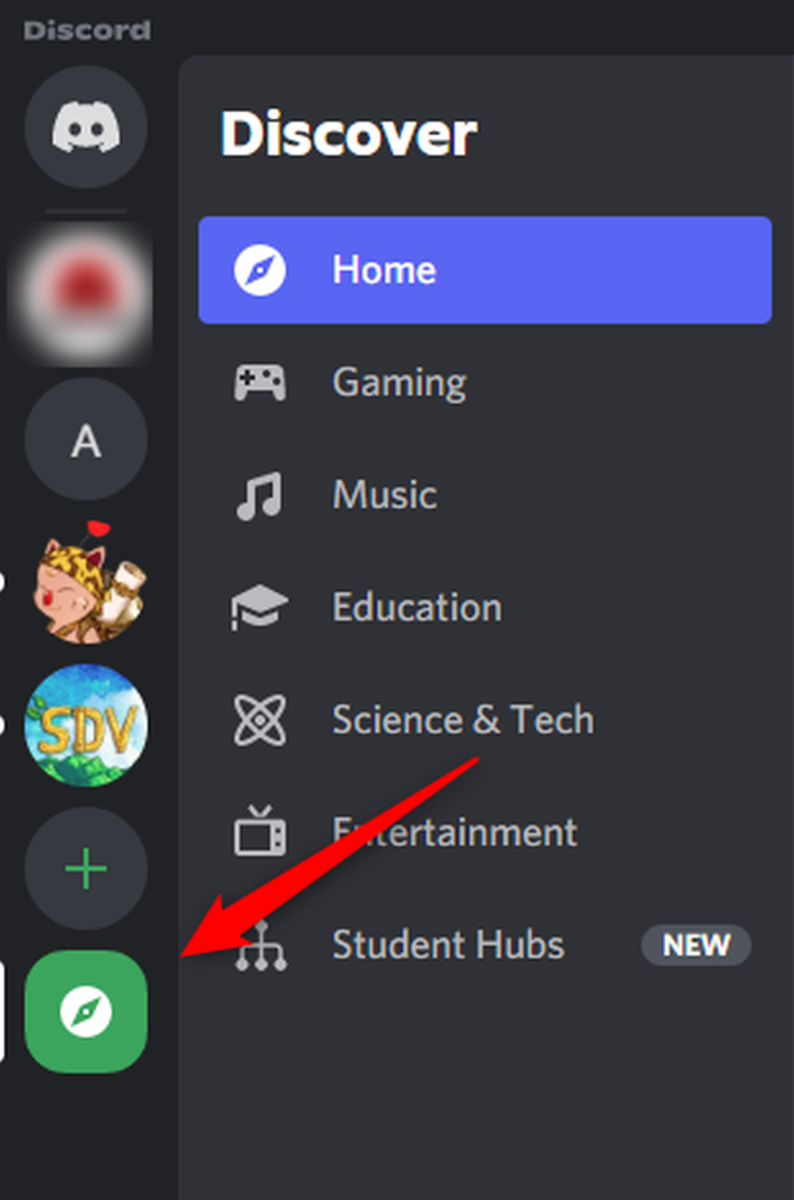
To join a server, you can either search for it within the Discord app or use a direct link if available. For instance, PCWorld has its Full Nerd Podcast Discord server. To find a Discord group, open the Discord app on either your desktop or mobile device and navigate to the "Explore Public Servers" option in the left-hand panel.

Beginner's-Guide-to-Discord-1
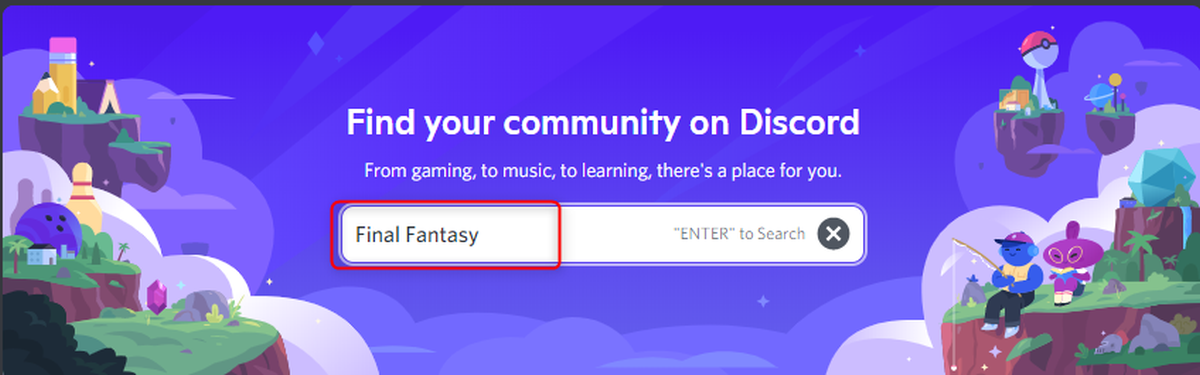
Type the server name in the search box, press Enter. Public servers matching your search will display in the results.
Beginner's Guide to Discord 2

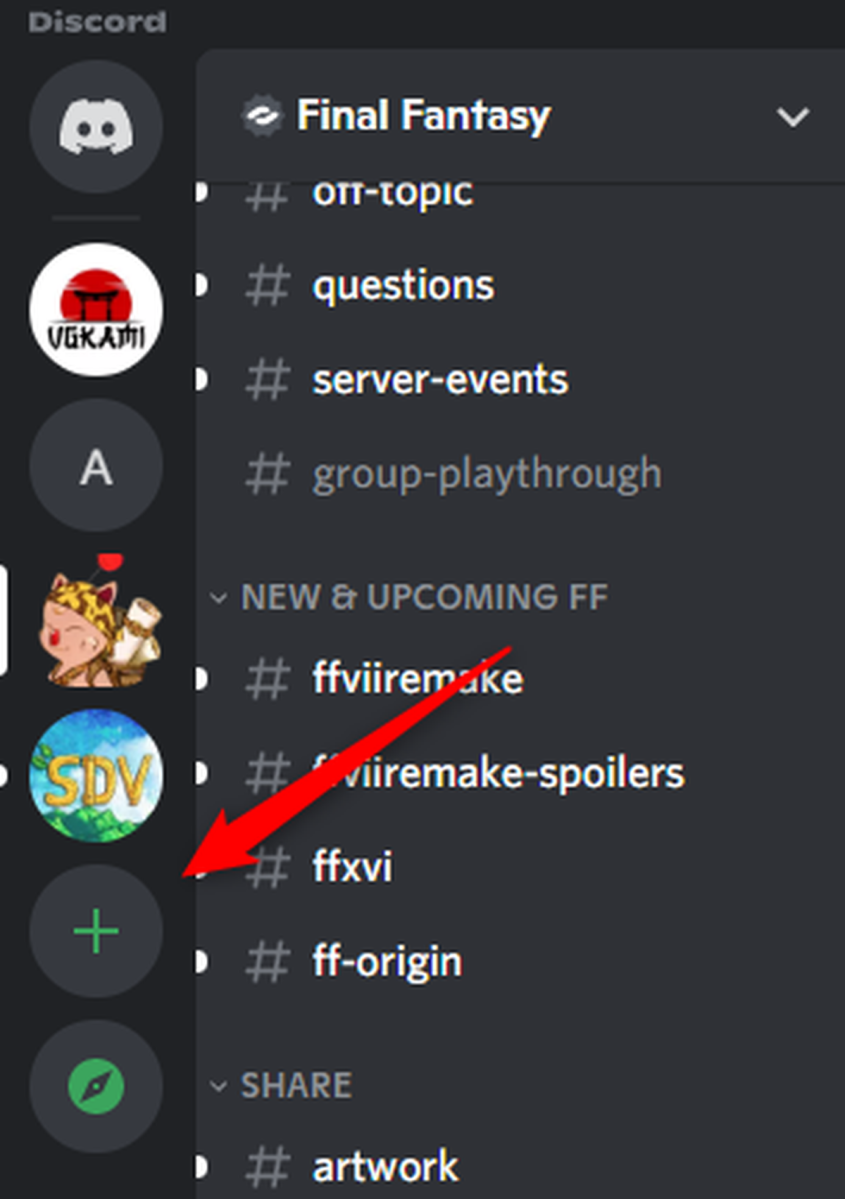
Joining a Discord server can also be done by receiving a link from someone already in it. To create a server, click the "Add a Server" button in the Discord app's left-hand pane.
Beginner's Guide to Discord 3
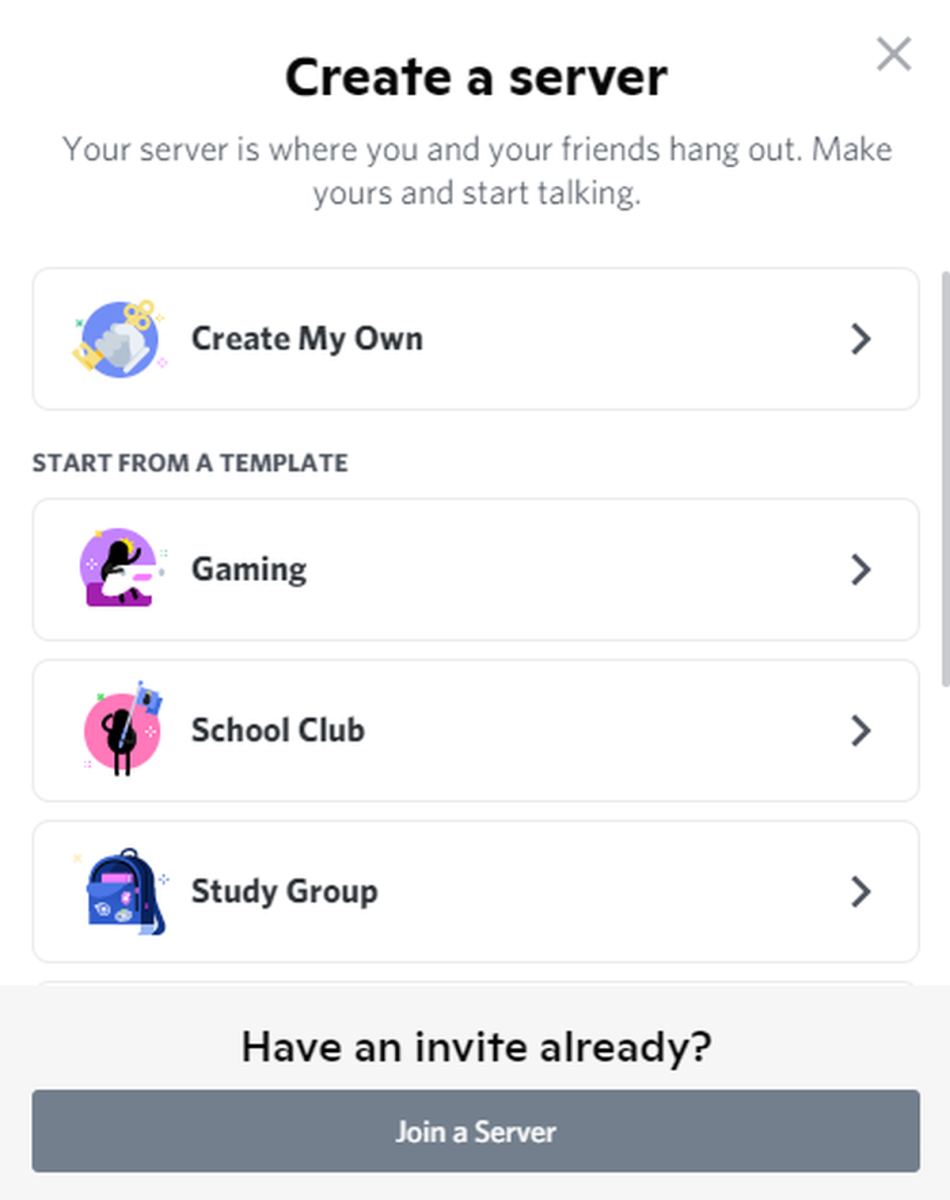
Create a server from scratch or start with a template.
Beginner's Guide to Discord 4
Just follow the on-screen instructions and select the options that best suit your desired community.

Enhance security with the use of two-factor authentication (2FA)
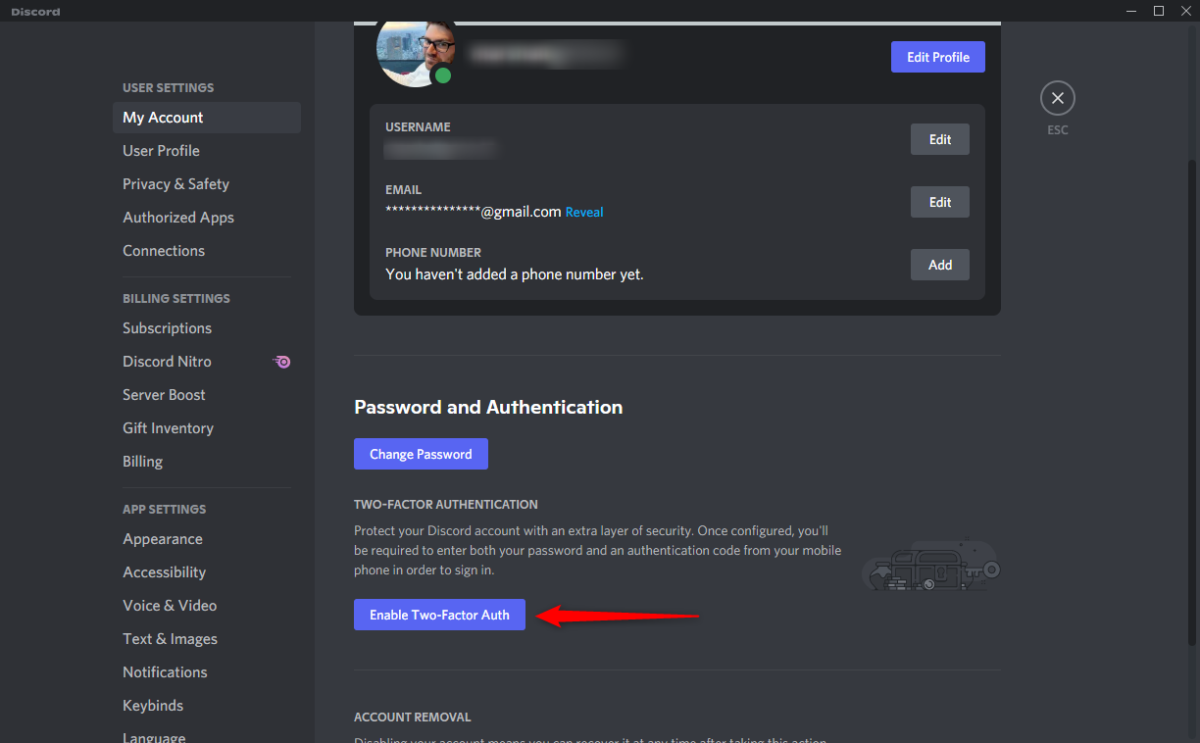
For added security, set up two-factor authentication (2FA) when creating a Discord account. This will provide an extra layer of protection against potential hacking attempts. To use 2FA, download an authenticator app such as Google Authenticator or Authy from the Apple App Store or Google Play Store and create an account. In Discord, go to Settings > My Account > Enable Two-Factor Auth in the "Password and Authentication" section.
Beginner's Guide to Discord 5
Complete the setup by following the subsequent steps. Ensuring the security of your account is crucial, and it is recommended to change your Discord password as an added measure.

Manage Discord Notifications

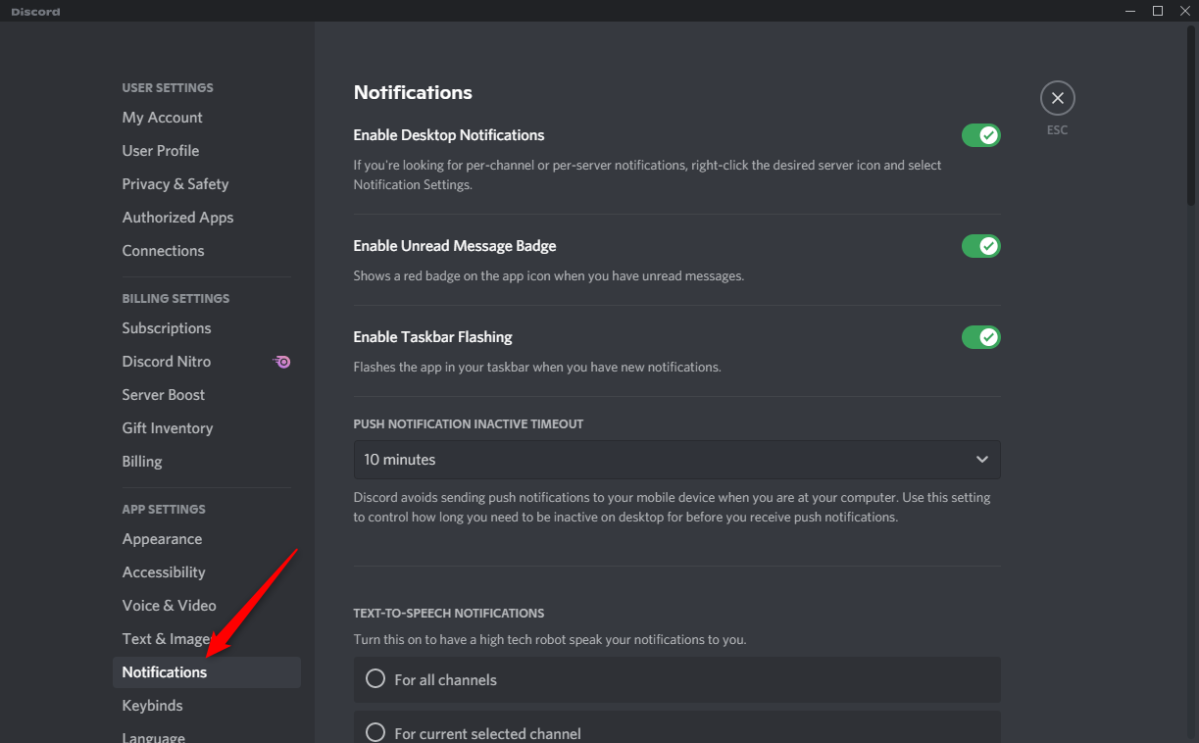
Discord notifications can become overwhelming, especially if you are part of multiple communities. Discord provides full control over notification settings. To adjust them, go to User Settings > Notifications.
Beginner's Guide to Discord 6

From this section, you can customize the types of notifications to receive and turn on/off the sound for each type. Having control over the timing and method of receiving notifications helps maintain a productive environment, as an excessive number of notifications can be overwhelming.

Organize with Server Folders
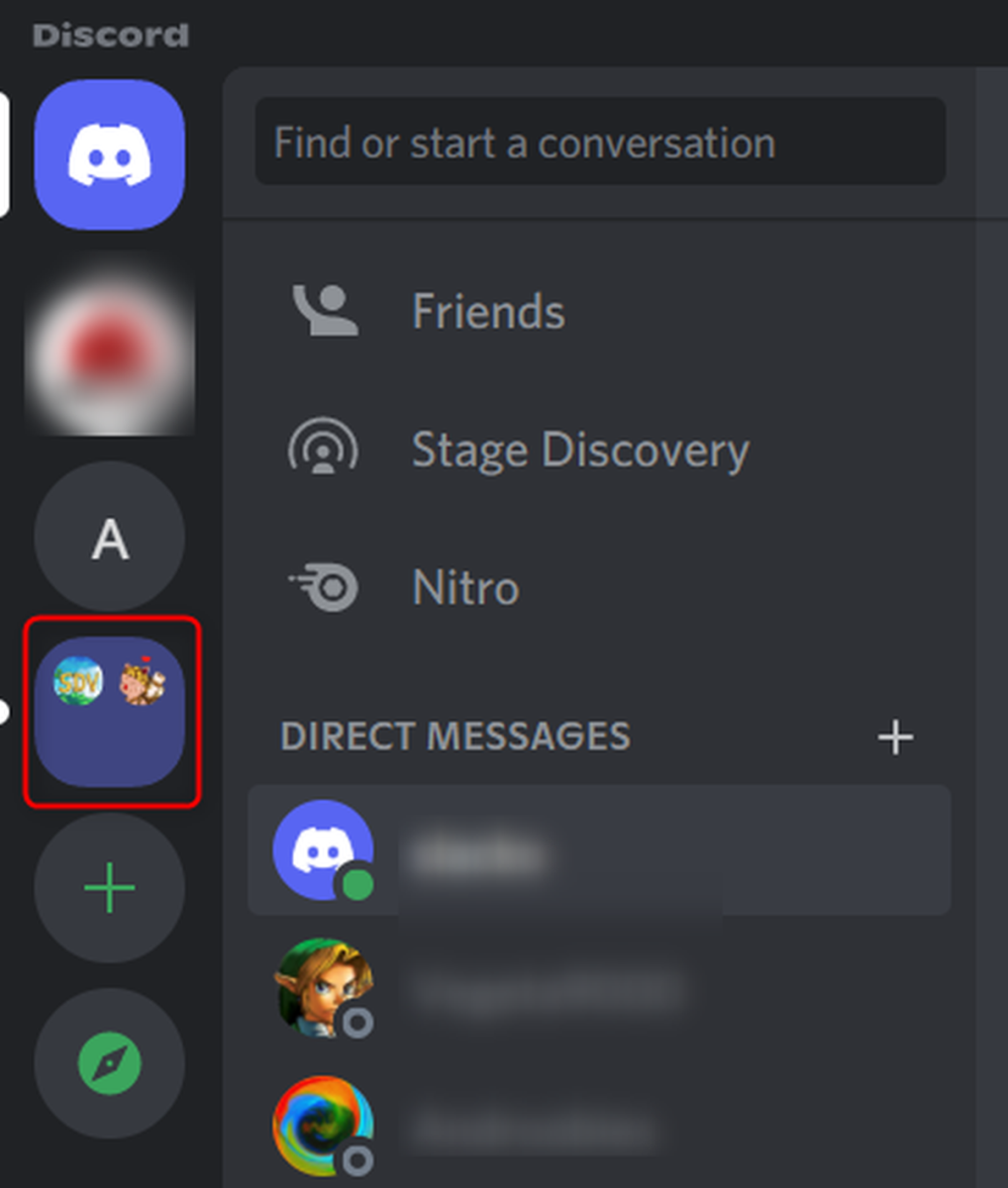
For those with multiple server memberships, organization is crucial. Discord allows for the creation of server folders to categorize servers neatly. To create a folder, click and drag a server onto another in the left-hand panel.
Beginner's Guide to Discord 7
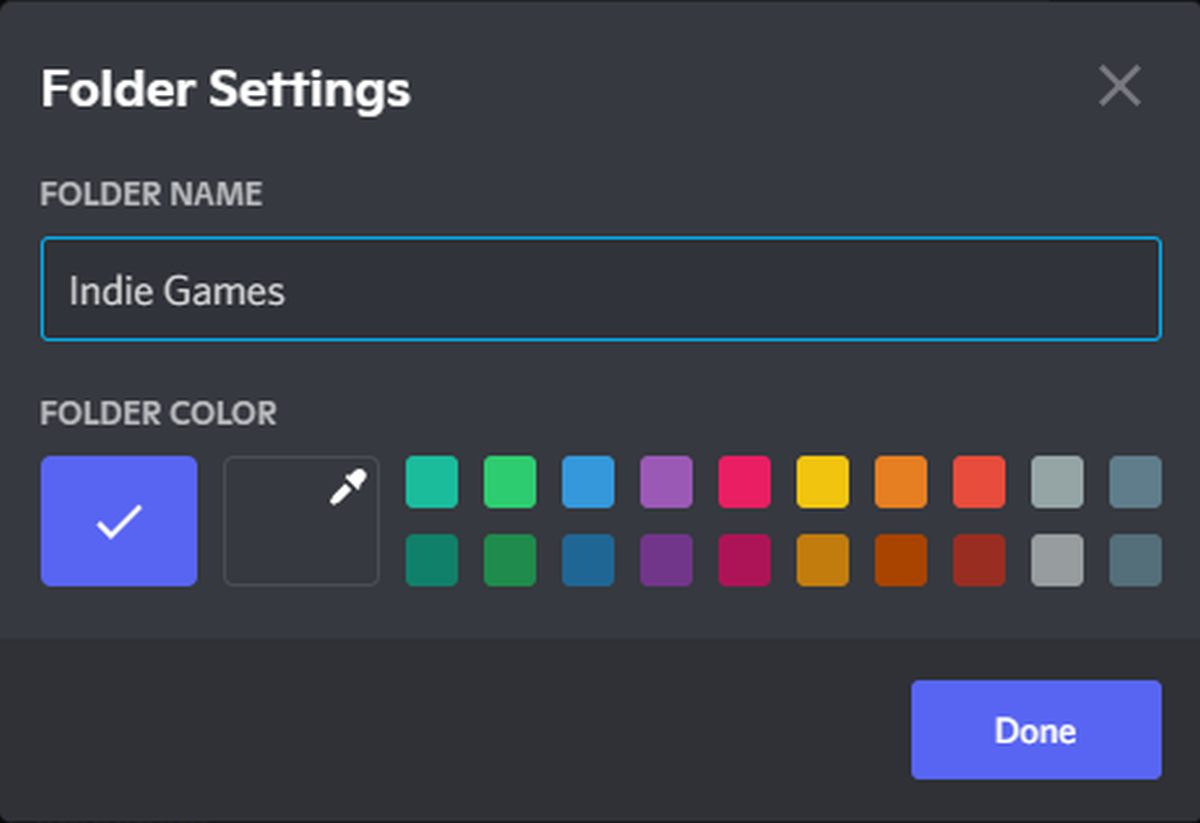
Improve organization further by editing the folder name and color for easy identification. Right-click the folder and choose "Folder Settings" from the context menu.
Beginner's Guide to Discord 8

Preserve your Friendships by Utilizing Spoiler Tags

Avoid being the source of frustration by not revealing important plot points to others. Remember, spoilers never lose their impact, regardless of the age of the game or movie. Utilize the spoiler tag feature on Discord by highlighting the text and clicking the Spoiler button (represented by the eye icon).
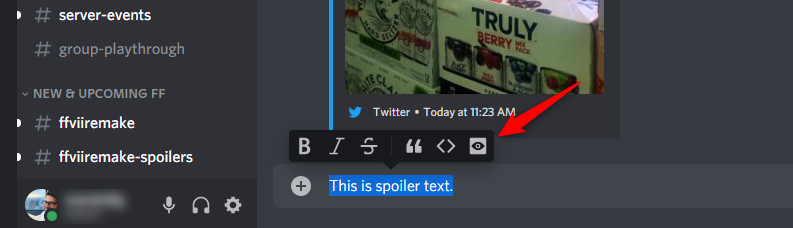
Beginner's Guide to Discord 9

Organize with Server Folders

The text can be formatted using markdown syntax by adding two horizontal bars on either side of the text, such as ||like this||. This formatting works for links as well, so if the link is a spoiler, it should be tagged accordingly. Tagging spoilers requires the user to click on the tag to reveal the text, ensuring everyone's enjoyment.

Markdown

Are you a fan of Markdown, a plain text markup language for formatting text? Good news, Discord supports it!

For those familiar with Markdown, no introduction is necessary. For those new to Markdown, here's a quick rundown of the basic syntax:

  • Bold: **text**
  • Underline: __text__
  • Italics: *text* or _text_
  • Strikethrough: ~~text~~
  • Single-line code block: `text`
  • Multi-line code block: ```text```
  • Block quotes: > text (put a space between > and text)
  • Hyperlink: [link text here](https://url-here.com)
  • Spoiler tag: ||text||

You can even combine formatting if desired. For example, to bold and underline, use __**text**__.