
Beginner's Guide to Canvas

What is Canvas?
Canvas is a web-based LMS utilized by educational organizations, teachers, and students for accessing and organizing online course content, as well as for communicating about academic progress. Canvas offers tailored course creation tools, analytical data for courses and users, and communication features.
Where Can I Locate the URL for Accessing Canvas at My Institution?
Each institution has a unique URL to access Canvas, typically in the format [institution name].instructure.com or canvas.[institution name].edu. Access to Canvas may be through a direct URL or through the institution's authentication system.
For Canvas Network, the URL is learn.canvas.net, and for Free-For-Teachers (FFT) accounts, it is canvas.instructure.com.
Mobile App Access
The Canvas URL can also be used to access the Canvas mobile apps. On the mobile login page, you can try searching for your institution or district name. If it can't be found, you will need to manually enter the URL. A QR code from the browser can also be scanned to access the Canvas mobile apps. Once you have located the URL, Canvas Login is simple.
What are the Browser and Computer System Requirements for Instructure Products?
For optimal performance, it is recommended to use Instructure products on the latest or previous major versions of Chrome, Firefox, Edge, or Safari. These products are built using web standards, making them accessible on various devices, including Windows, Mac, Linux, iOS, Android, and others, as long as they have a modern web browser.
To ensure a seamless experience, your computer's operating system should be up to date with the latest security updates and upgrades and support the latest compatible web browsers.
Note: Vanity Canvas URL users may face SSL validation errors while using Canvas if their browser or other tools connected to Canvas are not compatible with Server Name Indication (SNI). The browsers mentioned in this guide are all SNI compatible.
How to Enable Pop-ups for Canvas in Your Browser
In order to fully access certain features and course content in Canvas, it is necessary to allow pop-ups in your web browser. This includes viewing links and external tools within the platform. To ensure a seamless experience in Canvas, it is recommended to allow pop-ups for the Canvas website.
Accessing Blocked Pop-ups in Chrome
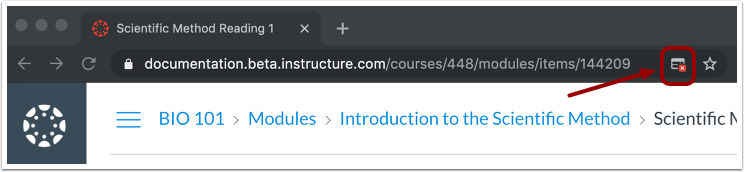
When a pop-up window is blocked in Chrome, the browser displays a pop-up icon to indicate that a pop-up has been prevented from opening.
Enabling Pop-ups in Chrome
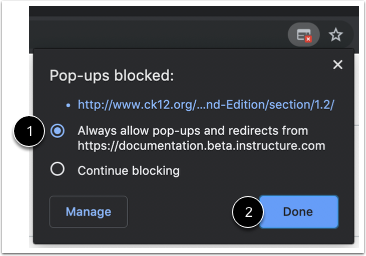
To allow pop-ups in Chrome for Canvas, click the pop-up icon that appears when a pop-up is blocked. From the options, select "Always allow pop-ups and redirects from [Canvas website]". Finally, click the "Done" button.
Accessing Blocked Pop-ups in Firefox

Firefox alerts users when a pop-up window is blocked by displaying a message.
Enabling Pop-ups in Firefox

To enable pop-ups in Canvas, go to Preferences [1] and choose the option for "Allow pop-ups for" [2].
Accessing Blocked Pop-ups in Safari

Safari shows a pop-up icon in the address bar when a pop-up is blocked.
Open Safari's Preferences
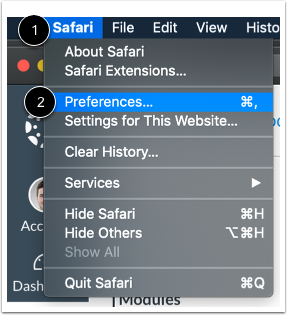
To enable pop-ups in Safari for Canvas, click the Safari menu and then select the Preferences option.
Enable Pop-Ups in Safari
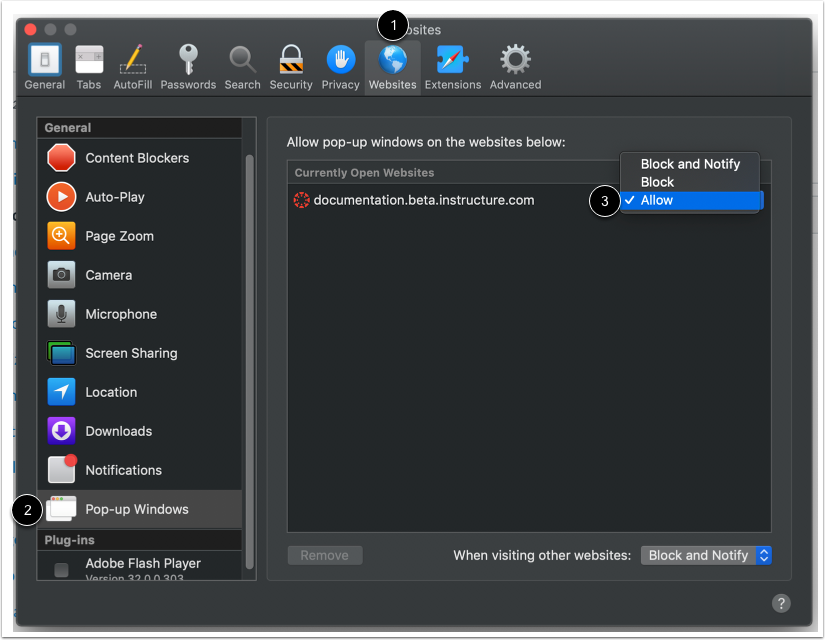
To allow pop-ups for your institution's Canvas URL, go to the Preferences window and click the Websites tab.
In the sidebar, select the Pop-up Windows link. Find your institution's Canvas URL and select the "Allow" option in the Block and Notify drop-down menu.
