
How to Change or Reset Discord Password

Reset Discord Password:
To reset your password if you cannot remember it, utilize either the email or the phone number linked to your account. The following steps outline the process for both desktop and mobile devices.
Reset Desktop Password
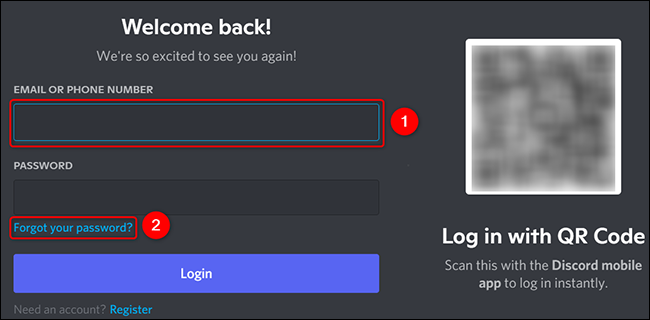
To reset your password on a desktop computer, start by opening the Discord app or accessing Discord through the web. On the login screen, select the "Email or Phone Number" field and enter the email or phone number associated with your account. Then, click the "Forgot Your Password" option. For the purpose of illustration, let's assume you're entering your email address.
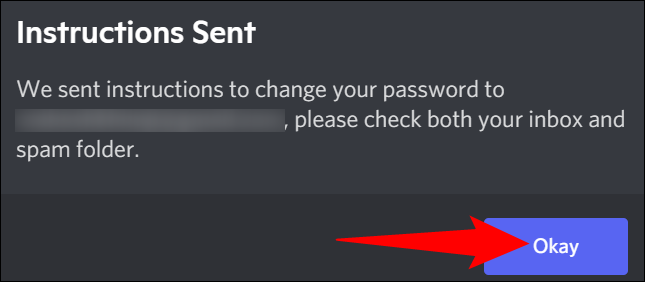
An "Instructions Sent" prompt will quickly appear on Discord. It informs you that the steps to reset your password have been sent to your registered email address. To close the box, simply click on "Okay."
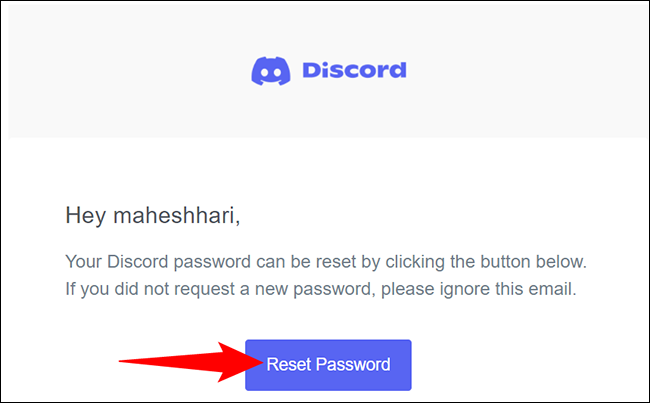
Access your email inbox and locate the message from Discord. To reset your password, simply click on the "Reset Password" link provided in the email.
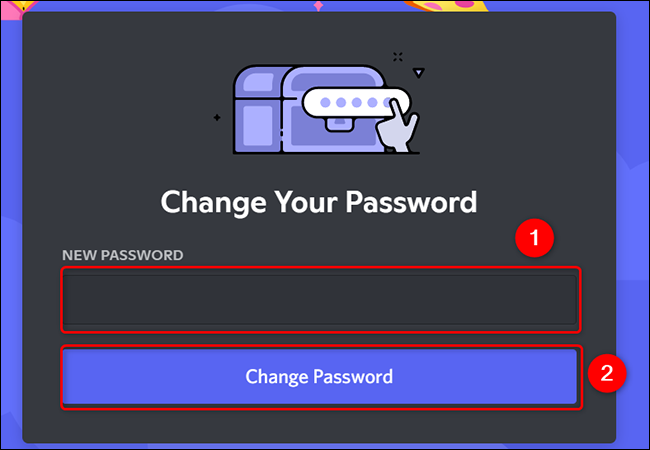
The link will redirect you to Discord's website where you can reset your password. On the site, select the "New Password" field, enter your desired password, and then click the "Change Password" button
Your account password has now been successfully reset. Use this new password to log in to your account on all your devices. Have fun!
Reset Mobile Password
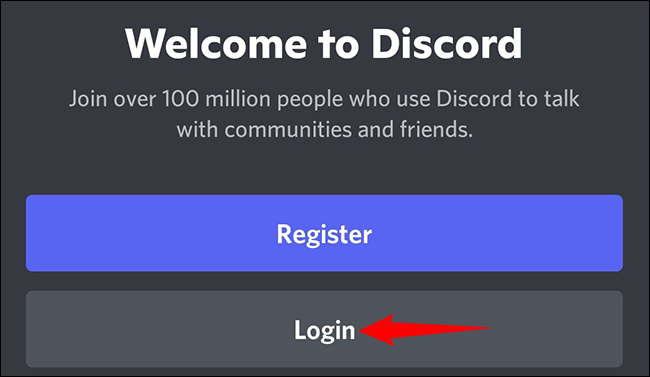
On the login screen, enter your registered email address or phone number in the "Email or Phone Number" field and then tap "Forgot Your Password".
In this example, we will enter our email address.

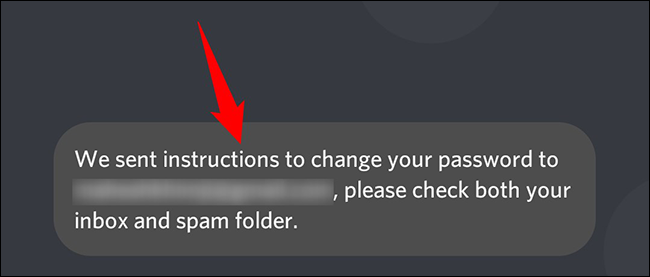
Notification of password reset instructions sent to email via Discord app.
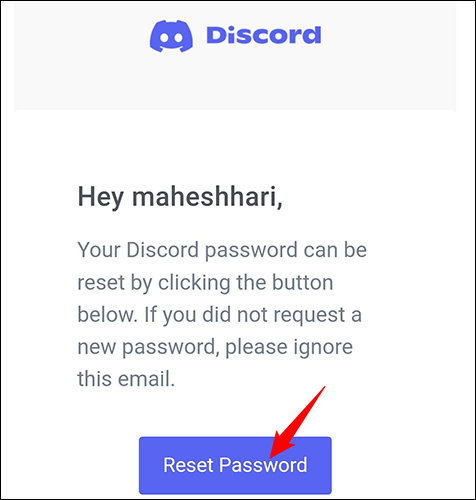
Go to your email inbox, find the email from Discord, and click the "Reset Password" link.
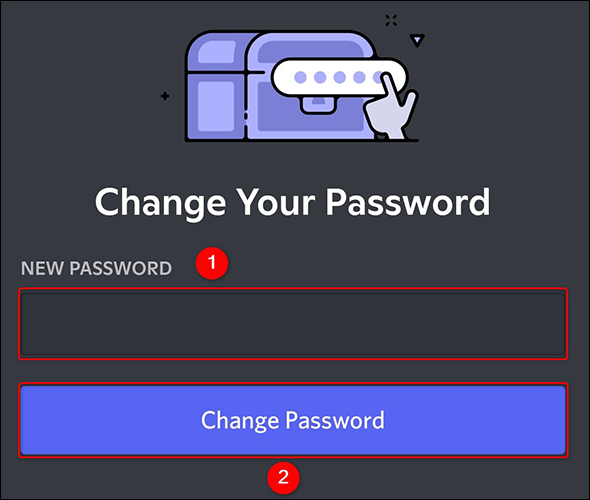
You will be redirected to the Discord website. In the "New Password" field, enter a new password for your account and click "Change Password".
Password reset successful for your Discord account.
Change Discord Password
Updating your password is simple if you have access to your Discord account.
Change Desktop Password
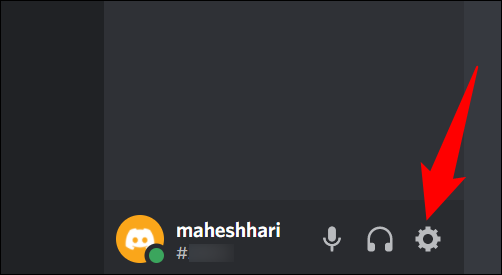
To update your password on desktop, open the Discord app or Discord for web. Then, click "User Settings" (represented by a gear icon) located next to your username in the bottom-left corner of the screen.
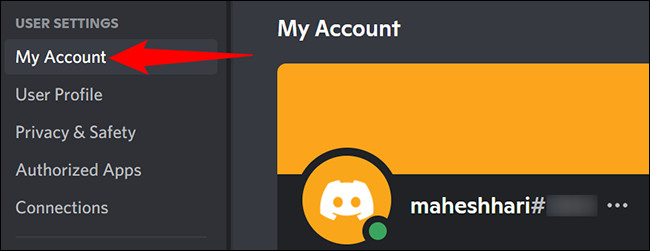
In the settings, choose "My Account" from the left sidebar.
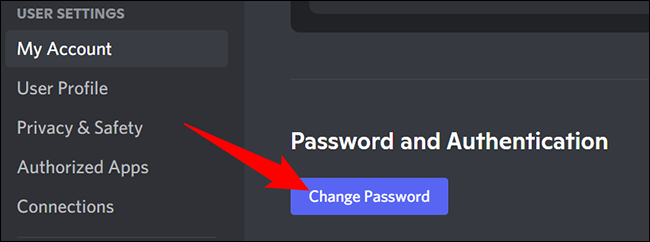
In the "Password and Authentication" section on the right, select "Change Password".
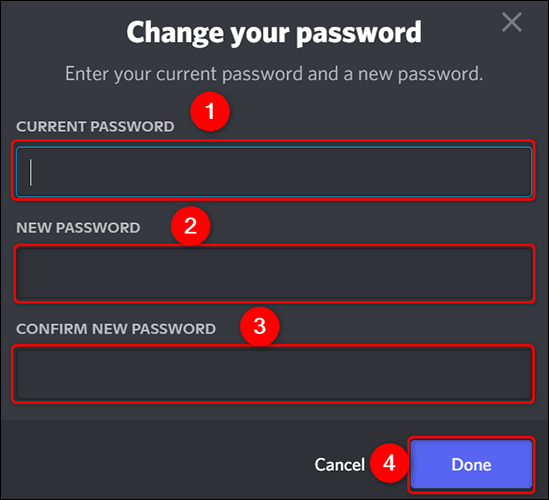
A "Change Your Password" window will appear. Enter your current password in the "Current Password" field, and then type in your desired new password in the "New Password" and "Confirm New Password" fields. Finally, click "Done".
Password change successful.
Change Mobile Password
To update your password on mobile, open the Discord app. Then, tap your profile icon in the bottom bar of the app.

On the "User Settings" page, select "My Account".
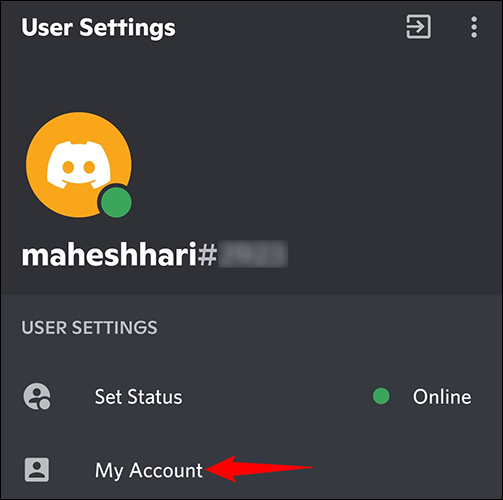
On the "My Account" page, select "Change Password".
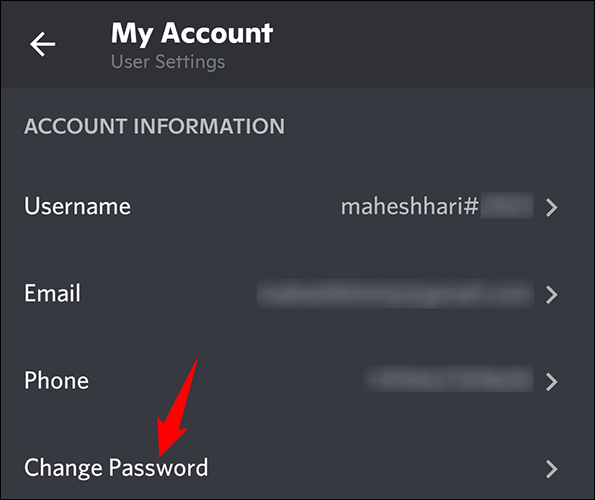
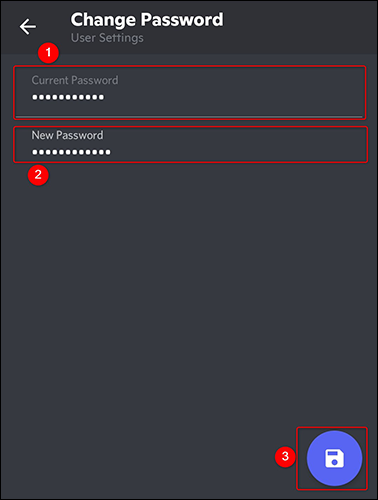
On the "Change Password" screen, type your current password in the "Current Password" field and then enter your desired new password in the "New Password" field.
After entering both your current and new passwords, tap the save icon (represented by a floppy disk) in the bottom-right corner of the screen to confirm the changes.
Once you've changed your password, we recommend exploring the Beginner's Guide to Discord for more valuable tips and insights.
