
Beginner's Guide to Yahoo Mail
Streamline and Arrange Your Yahoo Mailbox
1. Eliminate Email Overload
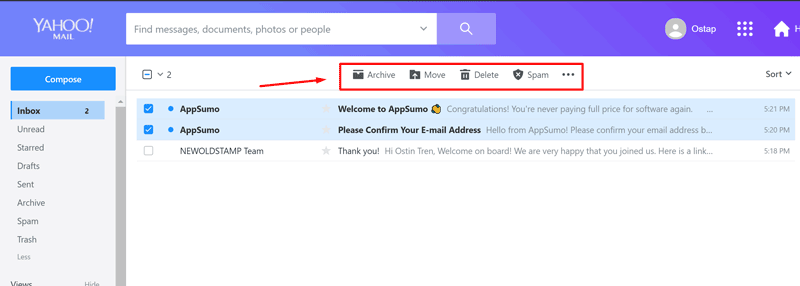
Activate multi-select mode by pressing and holding a message. Click on additional emails to select them. Archive or move selected emails to trash in one action.
2. Eliminate Unwanted Emails with Blocking Feature
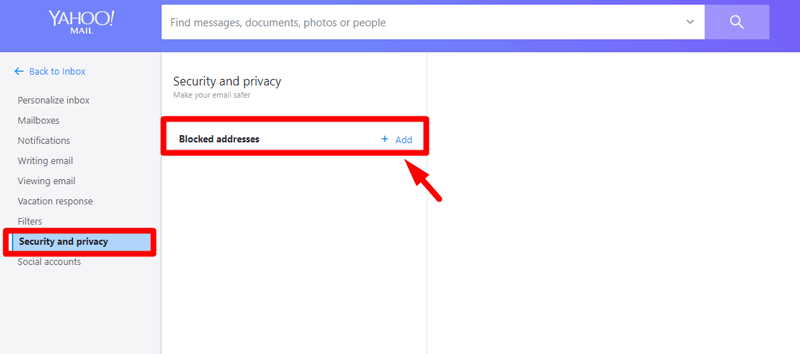
If you're tired of receiving emails from unwanted senders, you can block them with ease in the desktop version of Yahoo Mail. Unfortunately, this feature is not available in the mobile version at the moment. Here's how you can block an email address in Yahoo Mail:
- Open your Yahoo Mail account in the desktop version.
- Click on the Settings Gear icon in the top right corner of the page.
- From the drop-down menu, select "More Settings."
- In the Security and Privacy tab, click the "+ Add" button.
- In the "Address" field, type in the email address you want to block.
- Click "Save" to complete the process.
With this simple process, you'll never have to worry about receiving emails from the blocked senders again.
3. Organize your inbox with filters in Yahoo Mail
4. Easily Locate Emails with the Search Function
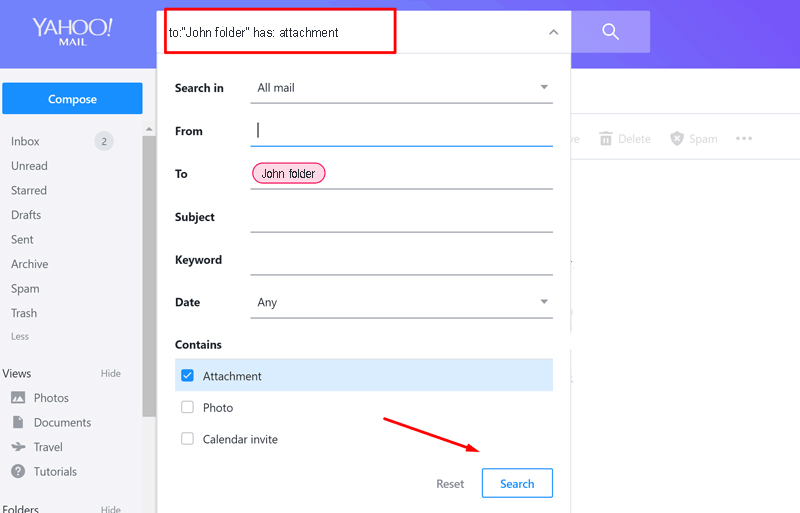
Don't waste time aimlessly scrolling through your inbox, searching for a specific email. Utilize the powerful search operators available in Yahoo Mail to quickly find the email you're looking for. Here are a few examples of how to use these operators:
- "from:" to find messages from a specific sender (e.g. from: dad)
- "subject:" to find messages with a certain keyword in the subject line (e.g. subject: urgent)
- "to:" to search for emails sent to a specific recipient (e.g. to: john@yahoo.com or to: John)
- "has: attachment" to only display emails with attachments
You can even combine operators for more specific searches (e.g. to: John folder: Sent). Say goodbye to endless inbox scrolling and hello to efficient email searching.
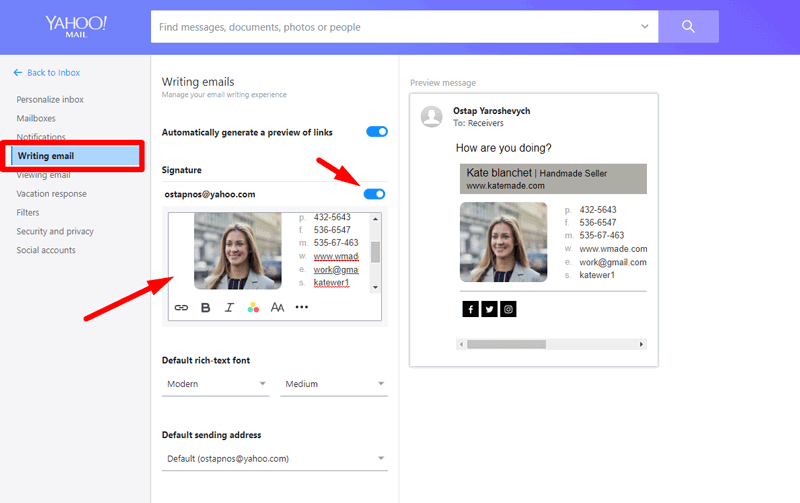
5. Setting Up an Email Signature
6. Efficient Email Management with Quick Actions on the Yahoo Mail Mobile App
7. Stay Organized with Yahoo Notes in Your Mail
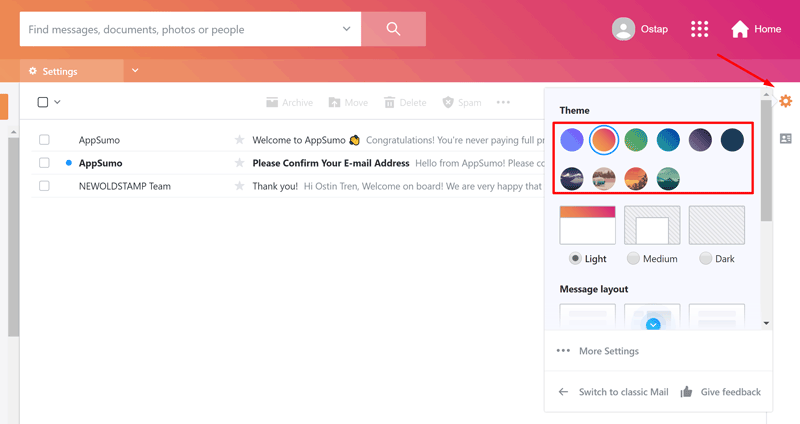
8. Personalize your Yahoo Mail with Background Images
9. Maximize Your Email Storage
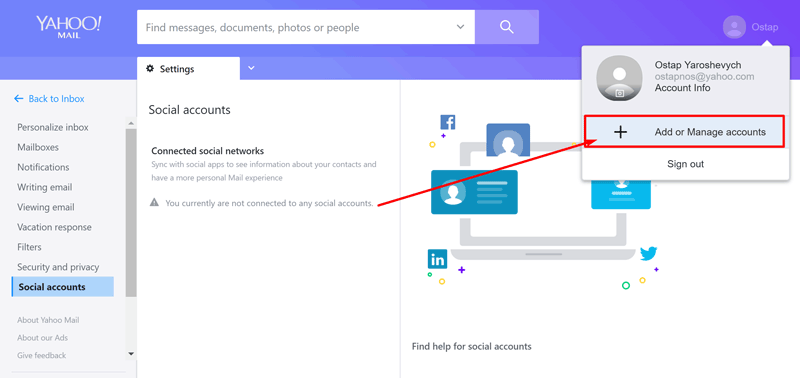
10. Expand Your Connections with Social Network Integration
11. Consolidate Your Emails
12. Customize Your Yahoo Menu Bar for Optimal Use
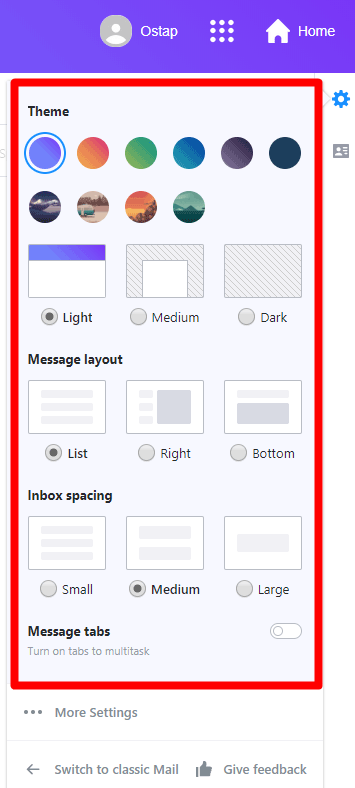
Maximize Productivity with Tabs. Manage multiple tasks within your inbox by composing, searching, and reading emails simultaneously, without having to open new windows. To enable tabs, follow these steps: Gear icon -> Settings -> Viewing email -> select Tabs under Multitasking -> Save.
Customize Your Inbox Spacing for Comfort. Easily adjust the space between your messages in the inbox with the new Yahoo Mail. Access the Inbox Spacing option by clicking on the Gear icon and choose from Small, Medium, or Large message spacing.
Personalize Your Message Layout. Customize the way your messages are displayed by selecting from various options offered under Message Layout. Simply click on the Gear icon and choose Message Layout to access the options, such as Show message on the right or No preview pane.
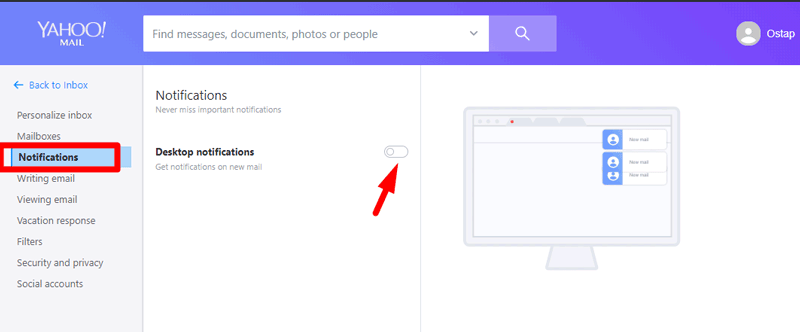
13. Stay Up-to-Date with Yahoo Mail Notifications
14. Become More Efficient with Yahoo Mail Shortcut Keys
15. Enhance Your Yahoo Mail Experience with Extensions
Unlock greater potential for your mail. In this paragraph, discover how you can elevate your email game with powerful add-ons.
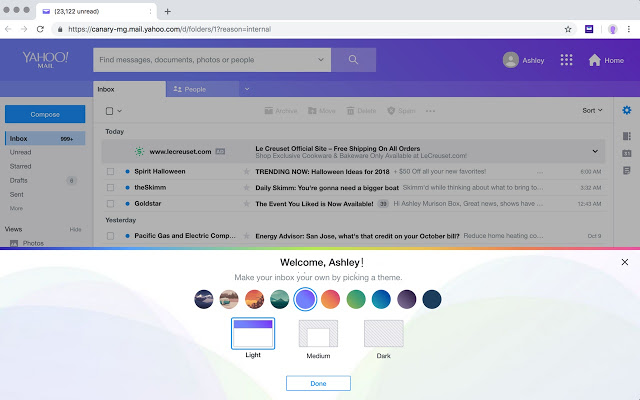
This free extension offers a more expansive view of your inbox, though keep in mind that it will set Yahoo as your default search engine.
Search and New Tab by Yahoo
The extension "Search and New Tab" enhances your browsing experience by displaying stunning images from Flickr on every new tab page and sets Yahoo as your default search engine.

Make Yahoo.com your new tab and homepage with this extension.
16. Enhance the security of your Yahoo account
If you suspect unauthorized access to your Yahoo Mail account, take immediate action to secure it. Indicators of unauthorized access include receiving complaints about spam being sent from your account, finding emails in your Sent folder that you didn't send, not receiving replies to messages you've sent, or noticing unusual login activity. To fortify your Yahoo Mail security, consider implementing these steps:
- Enable 2-Step Verification
In addition to a password, enabling 2-Step Verification adds an extra layer of security to your Yahoo Mail account. When you enable this feature, Yahoo Mail will notify you via phone or another email address whenever someone tries to log into your account from a new device. To activate 2-Step Verification, go to your account settings, click on Account Info, select Account Security, and turn on the Two-Step Verification feature.
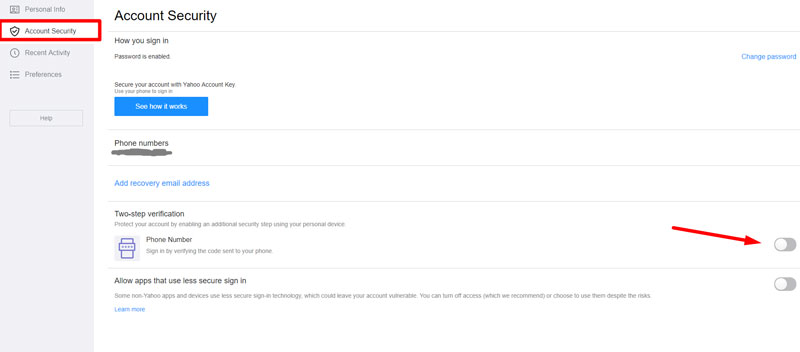
Securing your Yahoo Mail account is crucial to prevent unauthorized access. To make sure your emails are protected, follow these steps:
Create a Secure Password: A strong password should consist of a combination of letters, numbers, and symbols. However, it can be challenging to remember. A more secure option is to use a passphrase made up of four to five random words, such as "beautiful sausage in Hawaii". If you encounter any issues while trying to log in, it could be necessary for you to change or reset your Yahoo Mail password.
Use Yahoo Mail Account Key: To add an extra layer of security, use the Account Key feature. This feature allows you to access your Yahoo Mail without entering a password. Instead, you'll receive a notification on your designated device, and you can approve or decline the request. To enable this feature, go to Account Info -> Account Security and enter your phone number.
