Beginner's Guide to iCloud
iCloud serves as the foundation for Apple's services accessible through Mac, iPhone, or iPad. While additional services like Apple Music, Apple TV+, and Apple Arcade require a subscription, iCloud provides the essential framework for managing data and communication.
Customizable Hulu + Live TV Experience
To start using Apple devices, you need to create an Apple ID and iCloud account. This allows you to log into any Apple device and access your data stored on Apple's servers.
iCloud was introduced in 2011, replacing the previously available MobileMe, .Mac, and iTools services. Unlike MobileMe, which was a paid service, iCloud is free, though additional storage may require payment.
iCloud is critical to the seamless operation of Apple products, managing over a dozen data types and ensuring they are both stored in the cloud and synced across devices. Although it's possible to use Apple devices without utilizing iCloud features, using it simplifies the user experience and promotes commitment to Apple's platforms.
Understanding iCloud: The Essential Apple Service
To start using Apple devices, you need to create an Apple ID and iCloud account. This allows you to log into any Apple device and access your data stored on Apple's servers.
iCloud was introduced in 2011, replacing the previously available MobileMe, .Mac, and iTools services. Unlike MobileMe, which was a paid service, iCloud is free, though additional storage may require payment.
iCloud is critical to the seamless operation of Apple products, managing over a dozen data types and ensuring they are both stored in the cloud and synced across devices. Although it's possible to use Apple devices without utilizing iCloud features, using it simplifies the user experience and promotes commitment to Apple's platforms."
iCloud: A Comprehensive Suite of Services
Cloud Storage, iCloud Drive, and Backup Solutions
By default, Apple provides 5 GB of storage to hold your data. However, this limited amount of storage can quickly be consumed, particularly if you need to back up multiple devices.
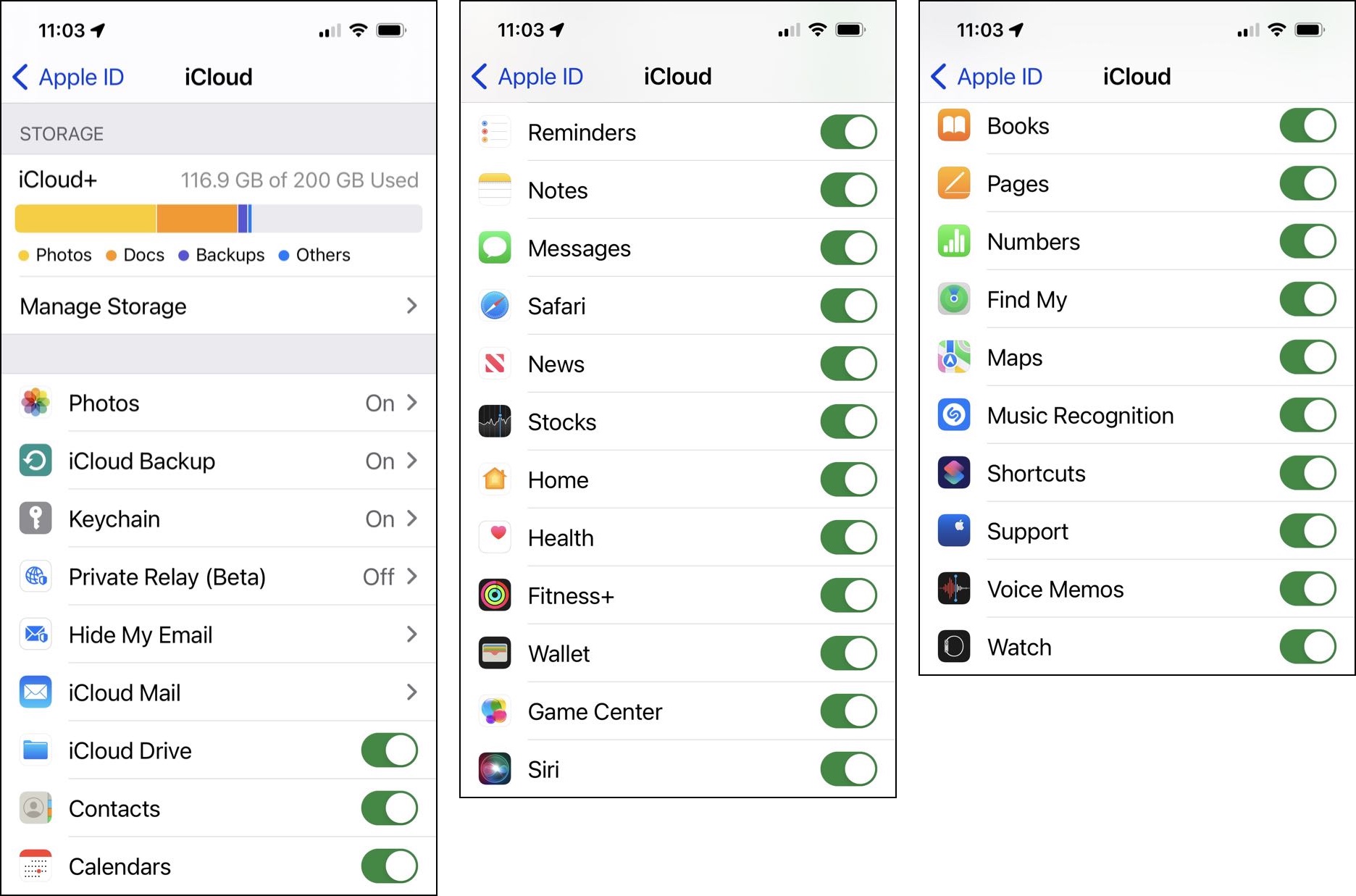
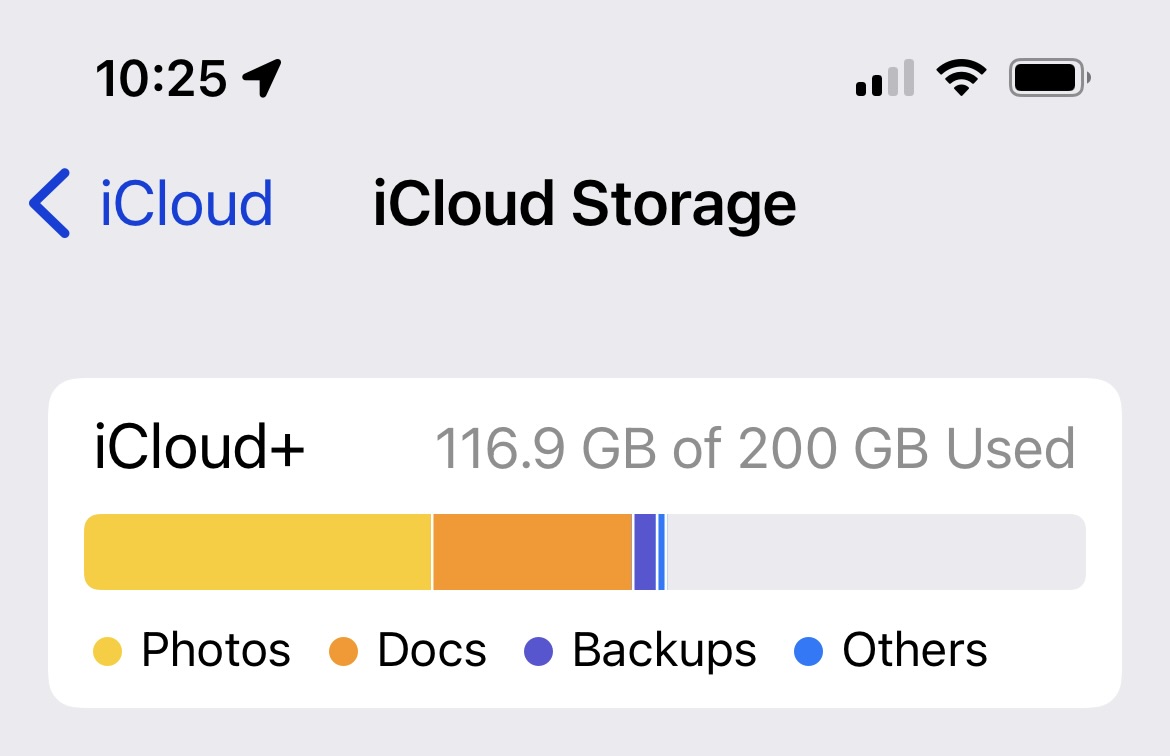
You can monitor your storage usage on a Mac by going to System Preferences > Apple ID, and on an iPhone or iPad, by going to Settings > Apple ID (your name) > iCloud. This will display your current storage usage and allow you to manage it as necessary."
Apple offers several options for expanding your iCloud storage beyond the default 5 GB. The available storage options and their monthly prices are as follows:
- 50 GB: $0.99 per month
- 200 GB: $2.99 per month
- 2 TB: $9.99 per month
For families, there are also Apple One plans that provide shared storage among up to six people and access to various paid Apple services. Additionally, the iCloud+ subscription includes features to enhance privacy when using iCloud email.
It's important to note that the storage purchased through iCloud is utilized for data, backups, and photo storage. If you have an Apple Music or iTunes Match subscription, the storage provided for your music is separate from the iCloud storage.
For those who back up their iPhone or iPad to a Mac or PC, the default 5 GB storage may be sufficient. However, if you plan to use iCloud Drive, you may need to purchase additional storage.
iCloud Drive enables you to store and access files in the cloud from your Mac via the Finder or from your iPhone or iPad through the Files app. While some users may prefer to utilize other cloud storage services, like Dropbox or OneDrive, for only a few files, iCloud Drive can be a main repository for your files. The 200 GB plan at $2.99 per month is adequate for most users, while the 2 TB plan at $9.99 per month provides ample storage for large collections of files.
Exploring Email Options with iCloud: Private Relay and Hide My Email
iCloud email is available to those who have an Apple ID with an Apple domain such as icloud.com, mac.com, or me.com. These email addresses resolve to the same mailbox. If you choose to use an email address with a different domain, such as Gmail, as your Apple ID, you can now subscribe to iCloud+ to access the custom domain feature for iCloud email. iCloud email uses the IMAP protocol, so you can access your inbox through any email app that supports adding email accounts.
In addition to email services, iCloud+ offers added privacy and security features, including iCloud Private Relay, Hide My Email, and HomeKit Secure Video. Keep in mind that the storage used for your iCloud email will count towards your total iCloud storage.
Locating My Devices with Find My

Messages
Synchronizing Personal Information with iCloud
With iCloud, you can synchronize your personal data such as contacts, calendar events, reminders, and notes using Apple's built-in apps, and even third-party apps can access this information. There are many calendar and contact apps that work seamlessly with your iCloud data. Additionally, iCloud also keeps your Safari browsing history, bookmarks, and reading list in sync.
To view the other data stored on iCloud, go to Settings > Apple ID > iCloud on an iPhone or iPad, or System Preferences > Apple ID > iCloud on a Mac. You'll see options to synchronize information from Apple News and Stocks, Home data (if you have smart home devices), Health and Fitness+ data, and your Wallet, which stores payment cards for Apple Pay.
iCloud Photos Storage Usage
For many individuals, photos and videos occupy a significant portion of their iCloud storage. As demonstrated in the previous screenshot, in my account, photos account for approximately half of the total storage used; the abundance of "Docs" is due to my use of iCloud Drive to store files that I want accessible in the cloud.
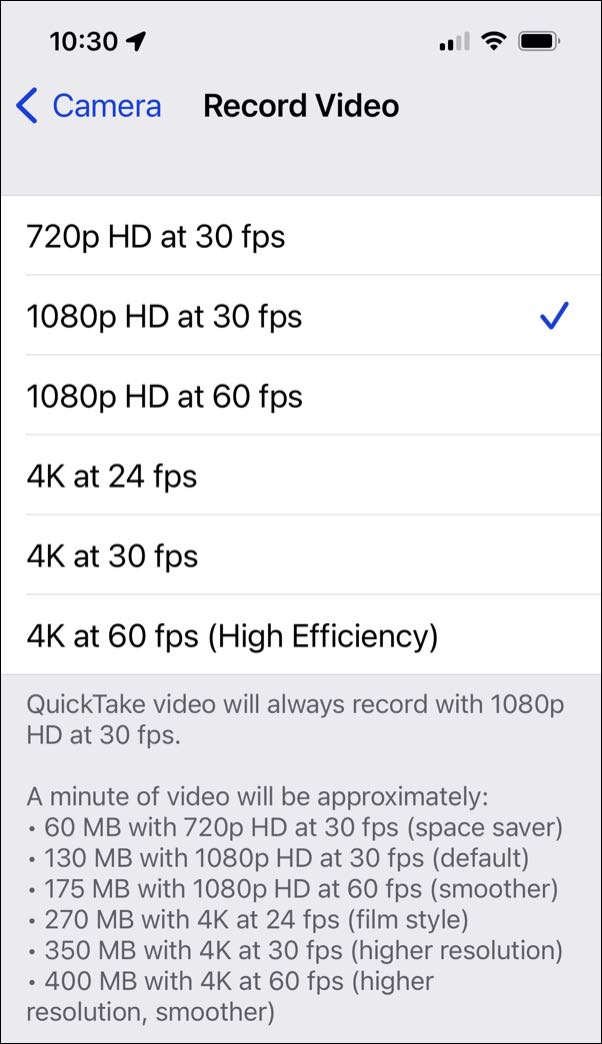
Due to the capability of iPhones and iPads to capture 4K videos, this storage can rapidly become filled. While photos are relatively small in size, just a few megabytes, videos can consume a substantial amount of storage. To view the storage space utilized by each format per minute, go to Settings > Camera > Record Video.